Profiles
Tip
To read the entire answer to a FAQ,
click the arrow icon ( ) below any question to
expand or collapse it.
) below any question to
expand or collapse it.
How do I join a profile group?
Click to view answer
Email the with the profile group you want. Once approved, the profile type will appear in the dropdown on the Work profiles page.
How do I create a profile?
Click to view answer
Click the
 button then, fill in and save the form
displayed.
button then, fill in and save the form
displayed.
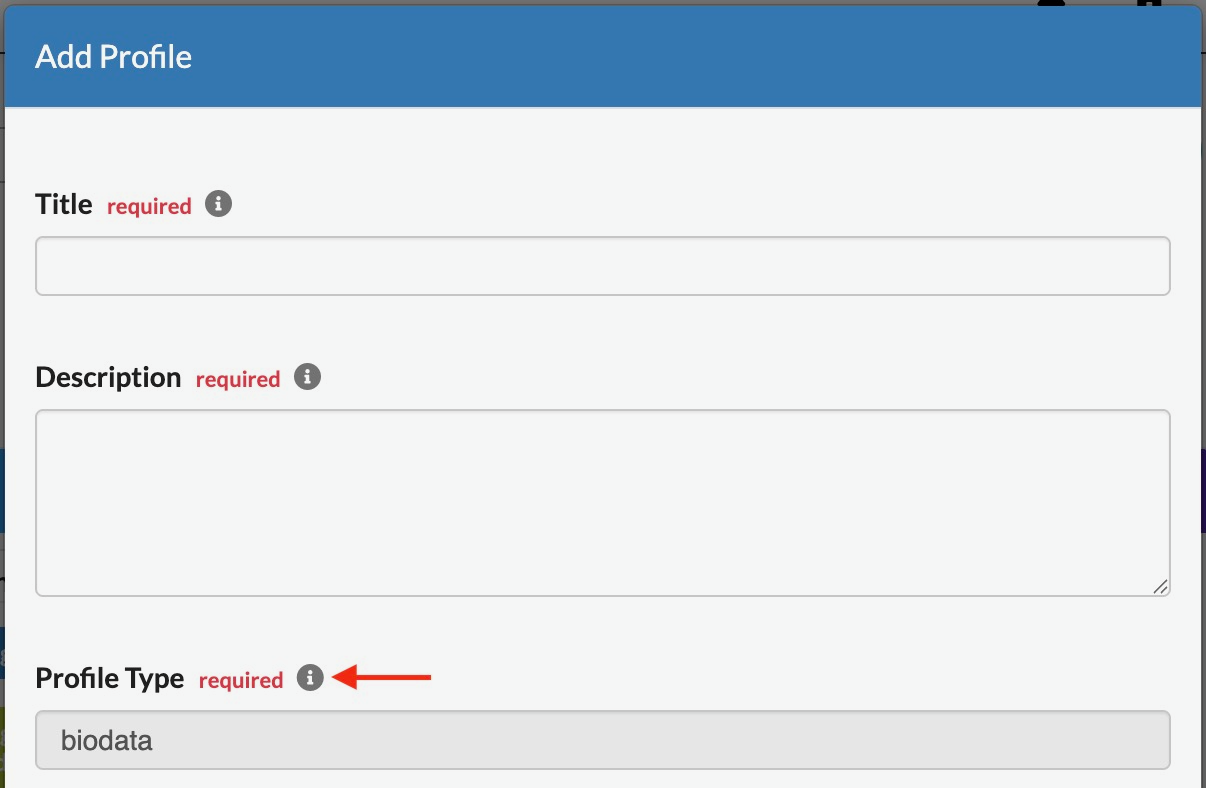
Add Profile form: Choosing a Profile Type
-
View the following video to see how to create a profile.
How do I know what type of profile I am using?
Click to view answer
The following are ways to identify the profile type you are using:
-
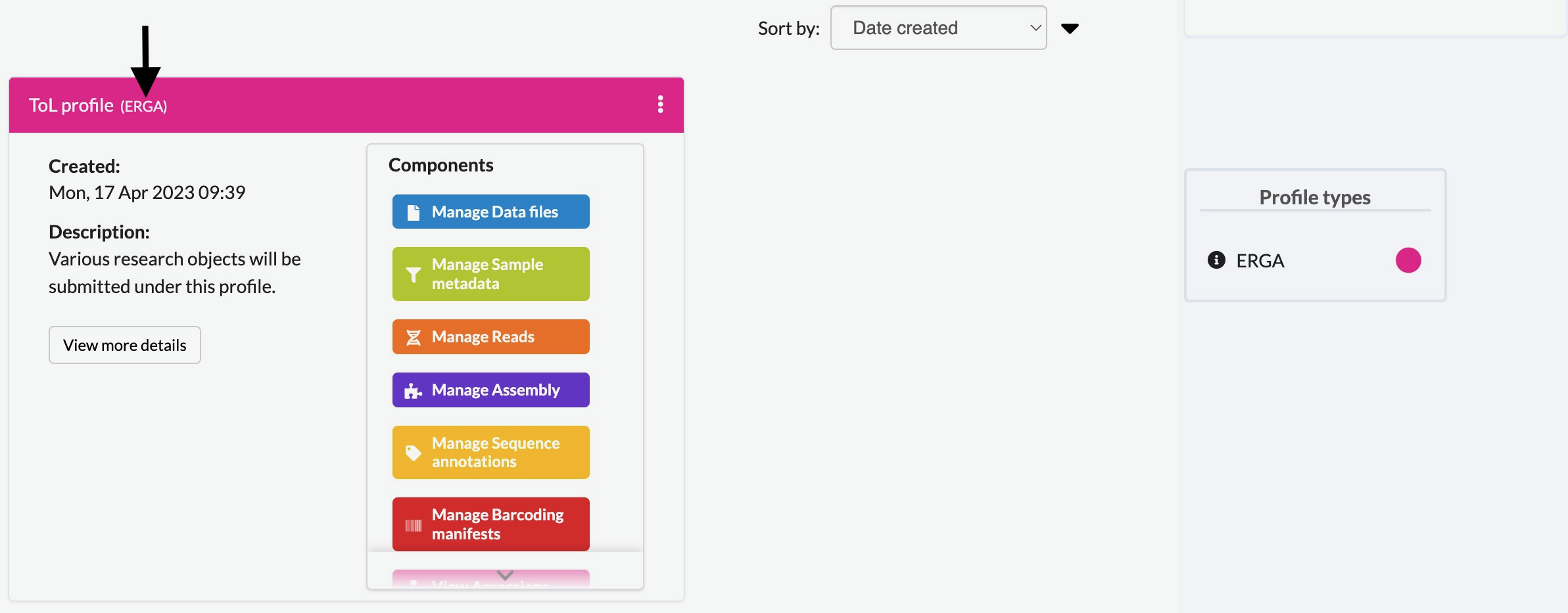
The abbreviation of the profile type is displayed in the brackets on the profile card next to the title of the profile on the Work profiles page. Refer to the Profile types legend on the right side of the page and hover over the info icon to view the full name of the profile type.

Profile type shown in brackets on the profile card
-
The profile type is also displayed in the Profile Type field when editing the profile. Refer to the Updating Profiles section for more information.

Profile type shown in profile form

How can I submit research objects to another user’s profile?
Click to view answer
See Sharing Profiles section for more information about sharing your profile, creating groups or submitting research objects to another user’s profile.
How do I add a subproject to a COPO profile?
Click to view answer
Refer to Select Associated Profile Type (if applicable) section for more information.
In addition, see the Secondary Projects section for a list of available subprojects.
How do I add a subproject to a primary project in ENA/Biosamples?
Click to view answer
Contact the with the request providing the project accession of the child/subproject and the project accession of the parent/primary project.
How do I edit or delete my profile?
Click to view answer
Click the
 icon associated with the profile.
The option to edit or delete a profile will be displayed once clicked.
The page will refresh after the task has been completed successfully.
How many profiles are allowed?
You can have as many profiles as needed to represent your research objects.
For instance, you can create a profile to represent work done as part of a grant, subproject within a project or a PhD project.
How do I view additional profiles I have created?
Scroll downwards on the page.
More profiles that you have created will be loaded.
How do I view details of a profile I created?
Click to view answer
Note
The  button will only be associated
with a profile if the profile has at least one of the following
information.
button will only be associated
with a profile if the profile has at least one of the following
information.
Click the
button associated with the
profile.-
After the button is clicked, a popup dialogue will show at least one of the following information if it is available:
Release Status (if applicable)
Release Date (if applicable)
Associated Profile Type(s)
Sequencing Centre
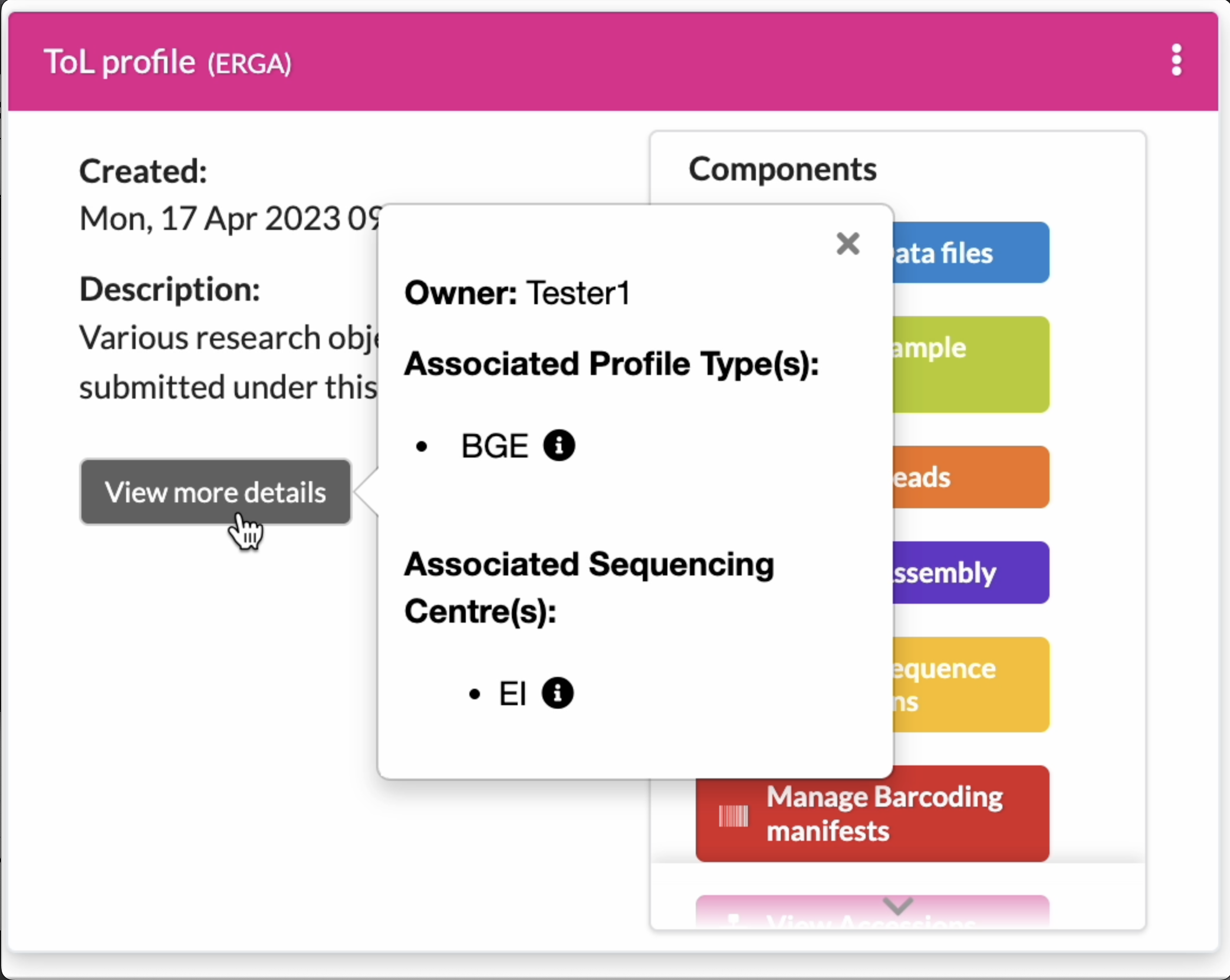
Profile: View more information popup dialogue
How do I quickly return to the top of the page after loading multiple profiles?
On the Work profiles page, scroll upwards or click the
 button located at the bottom-right corner of the page
to quickly return to the top of the page.
button located at the bottom-right corner of the page
to quickly return to the top of the page.
What is a profile component?
Click to view answer
A profile component is a research object that represents a specific aspect of a study or project. Examples include samples, reads, assemblies or files.
Click any of the links below to view the components of each profile type:
How do I create profile components?
Click to view answer
Each profile type has specific components that can be created to represent different research objects.
To navigate to the page any of these profile components, follow the steps below:
Choose profile type from the dropdown menu on the Work profiles page
Click the
buttonFill in then, save the form displayed
Click any of the buttons in the Components column associated with the profile to navigate to the page of the profile component
How can I make the data in a profile public?
Click to view answer
Hint
Profiles (in COPO) are referred to as projects or studies (in ENA).
See Publishing Data section for more information.
How do I set the publish date for public profiles after submitting reads?
Click to view answer
Hint
Profiles (in COPO) are referred to as projects or studies (in ENA).
It is not possible to set the publish date for profiles or projects after reads have been submitted.
By default, once reads are submitted, the project is private and the publish date is set to two years from the submission date.
You can, however, make the project public at any time before the publish date by following the steps below or refer to the Publishing Data section to make the profile public at any time after the submission.
How can I view submitted data on European Nucleotide Archive (ENA)?
Click to view answer
Hint
Profiles (in COPO) are referred to as projects or studies (in ENA).
If you know the project accession or profile title, you can find the corresponding project on the Accessions dashboard. By clicking the hyperlink associated with the project accession, you will be navigated to the associated study record on ENA.
See also
Finding Data Submission IDs section for more information.
Which sequencing centres process the samples?
Click to view answer
Currently, there are 20 sequencing centres whose samples are brokered through COPO.
Each COPO ERGA profile should be associated with a sequencing centre.
The following are the names of the sequencing centres:
|
|
What happens when a profile is updated?
Click to view answer
When a profile is successfully updated in COPO, the changes made to the profile will be reflected in the research objects such as samples, reads, assemblies or files associated with the profile.
For example, if a profile is updated to include:
a new associated profile type, the new associated profile type will be displayed in the sample records associated with the profile.
a new ENA locus tag, the new ENA locus tag will be associate displayed in the reads, sequencing annotations and/ assembles associated with the profile.