Sharing Profiles
Sharing profiles facilitates collaboration between COPO users by allowing a profile owner to grant other users access to a profile, enabling them to upload or submit research objects relevant to that profile.
This is done by creating a group, adding the profile to the group, and assigning the users with whom you want to share the profile.
Examples of research objects are samples, experiment, runs, reads, assemblies and sequence annotations.
Hint
Profile owner or Sharer refers to the person who created the profile.
Shared user or Sharee refers to the person who has been granted permission by the profile owner to upload or submit research objects to the profile created by the profile owner.
Note
Users of shared profiles cannot edit or delete them; only the owner of the profile has permission to do so.
In general, the sharer shall create a profile, create a group, add the profile to be shared to the created group then, add the COPO user(s) to the created group.
Thereafter, the shared profile shall appear on the Work profiles page of the sharee.
The following describes how to share a profile or create a group on COPO:
Sharer
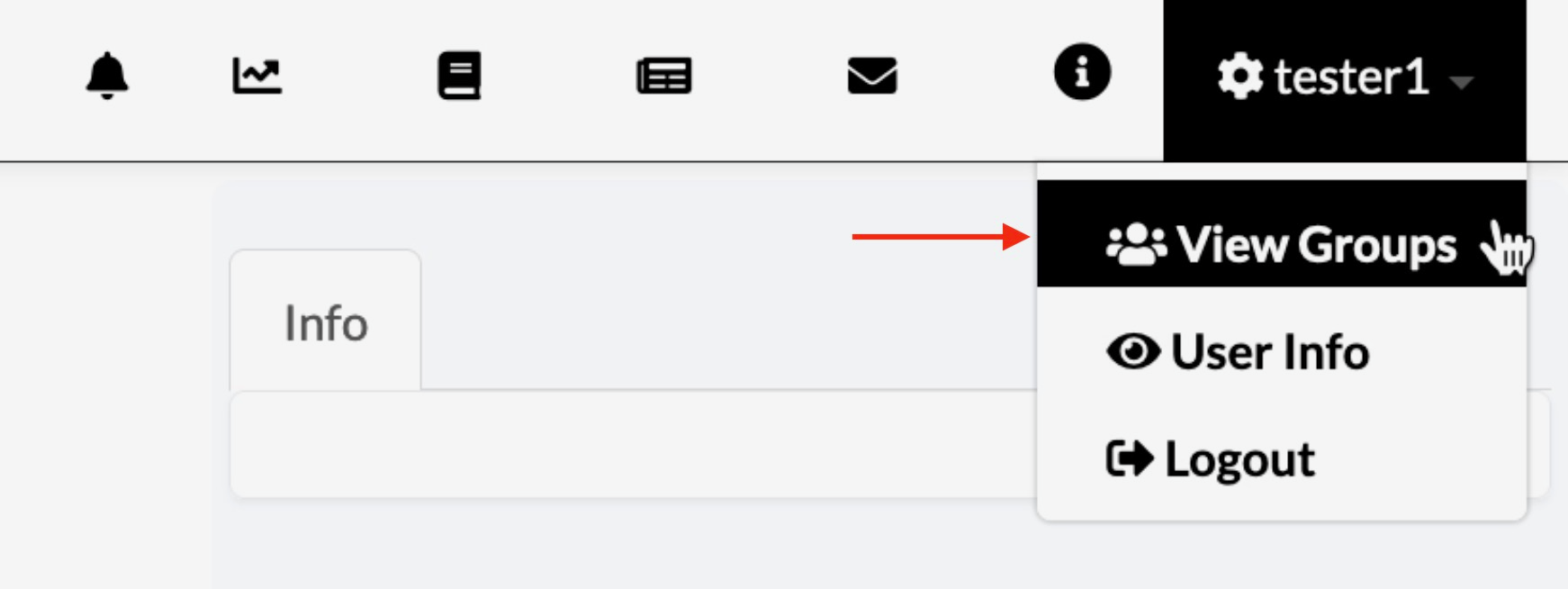
Click your name in the top right hand corner of the page (after you have logged in) to access settings
-
Click the View Groups option from the settings dropdown menu as shown below to navigate to the Groups page

Navigate to Groups page via the ‘View Groups’ settings dropdown menu option
-
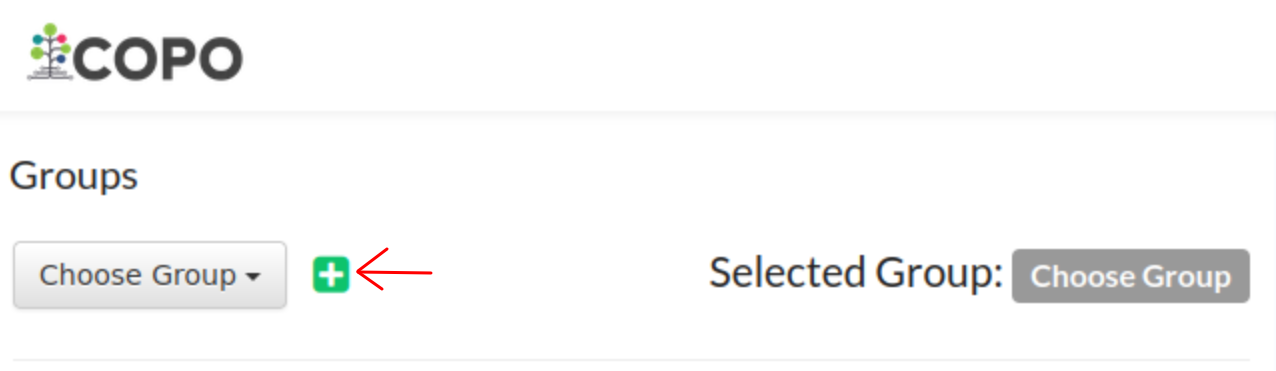
Click the
 button to create a new group
Groups page
-
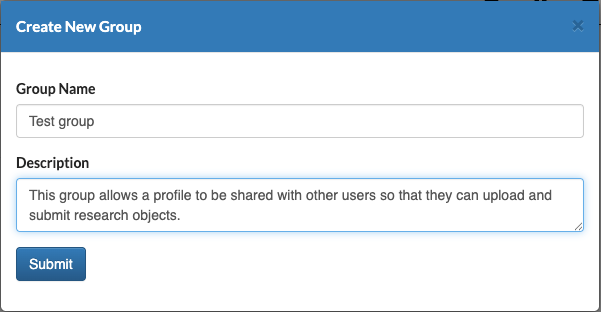
Provide details for the new group as shown below then, click Submit.
Hint
Both group Name and Description are required form fields. Meaningful values are recommended in them.

Add group dialogue

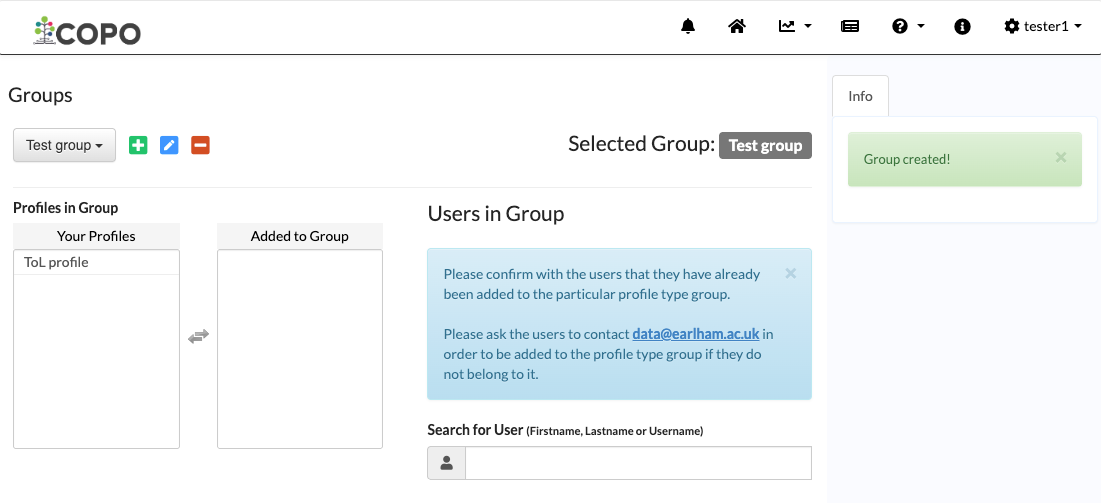
Group created successfully
-
Choose a profile that you would like to share from the list in the Your Profiles section under the Profiles in Group header by double-clicking it.
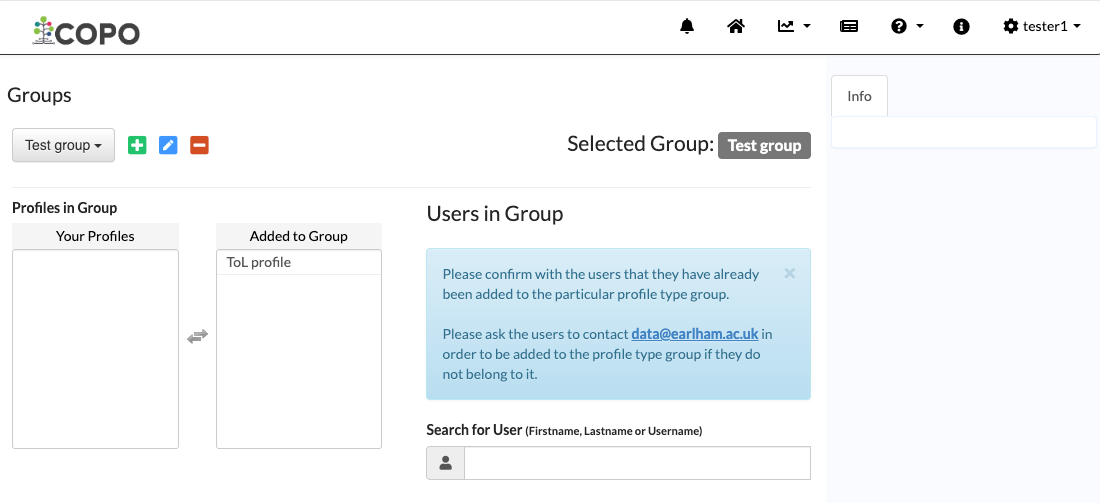
The profile is then, transferred to the Added to Group section as shown below.

Profile appears in ‘Added to Group’ section after having been double-clicked in the ‘Your Profiles’ section
-
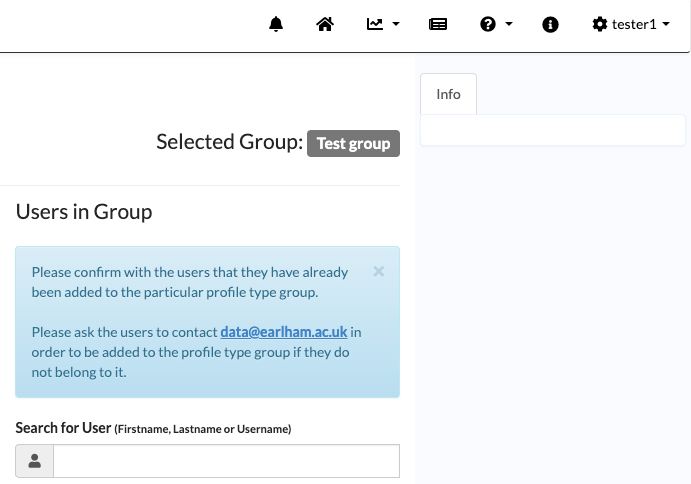
Search for the user who you would like to share the profile with in the Users in Group section located at the right of the page. Then, click the name of the user to add the user to the group.

Use search box to search for users to add to the created group
Sharee
Login to COPO.
-
Request to be added to a profile group associated with that the profile type that you would like to be added to if you would like to submit or upload research objects to a Tree of Life (ToL) project.
If you have not been added to the profile group, make a request to the indicating the type of profile group that you would like to be assigned to.
See the Supported Projects section for information about types of ToL projects.
-
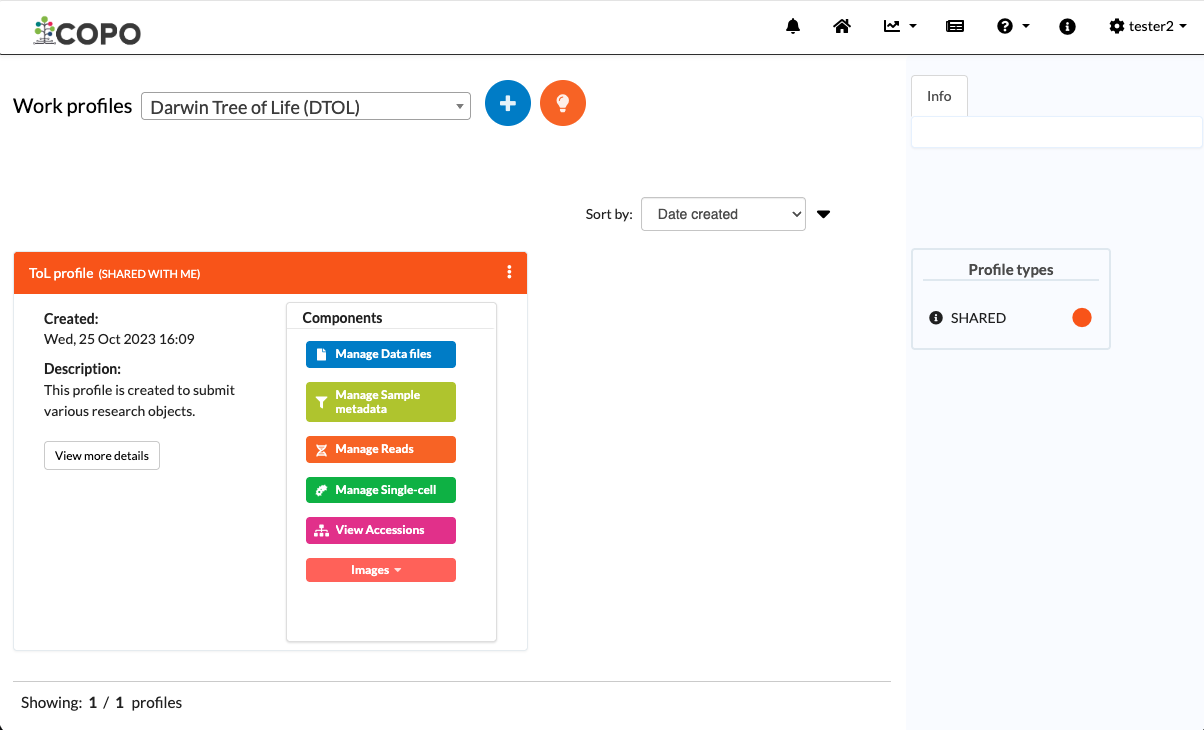
After the sharer has added you to the group, you will see the shared profile on the Work profiles page as shown below:
Note
If the profile owner has shared the profile with you and you do not see the shared profile on the Work profiles then, please perform step 2.
-
Shared profiles are indicated by an orange label as shown below.
See Profile Types Legend section for more information about profile types’ colour labels.

Shared profile appears on the sharee’s ‘Work profiles’ page