Updating Submitted Data
Updates follow the same process as the initial submission. The process is described in the Data Submissions section (in the sidebar on the left-hand side of the page). Click the desired submission type for instructions.
Data is updated by uploading an amended manifest or updated spreadsheet file to the same profile that was initially used to upload the manifest (before any modifications were done).
In essence, the uploaded manifest must include amendments for the change or update to occur. The system will detect any changes, process the updated data and highlight errors if they occur.
After a successful validation, the  button will appear.
Click it to apply the changes.
button will appear.
Click it to apply the changes.
Important
An error will occur if you perform any of the following actions:
Upload the amended manifest to a different profile [1] (other than the one used to initially upload the manifest)
Upload the amended manifest to a new profile
Delete a profile that already has data associated with it
Include new data on an amended manifest and then upload it. New data cannot be combined with existing data on a manifest, they must be be on separate spreadsheets.
Refer to the relevant sections below for restrictions and guidelines regarding
updating specific types of submitted data. Click  to
expand a section.
to
expand a section.
Sample permits and sample images
Sample permits and images can be updated by first uploading an amended sample manifest to the same profile used for the initial submission. Then, clicking the
 or
or  button. After a successful validation, the button
will appear. Click it to apply the changes.
button. After a successful validation, the button
will appear. Click it to apply the changes.
Reads
-
Updates to reads can only be done if the values in the
Sample,File checksum,File nameandLibrary layoutremain the same in the manifest. If any of these values change, errors will occur during the update process.This is because the value in the
Samplecolumn serves as the key for each row in the Reads manifest. Each unique sample in the manifest corresponds to a different biosample which is linked or tied to the value in theFile checksum,File nameandLibrary layoutcolumns.
-
Assemblies
Once assemblies have been submitted, they cannot be updated.
Sequence Annotations
Select a sequence annotation [3] record from the table, then click
Edit. Update the details and click Submit Annotation.
Deleting Submitted Data
Data can only be deleted before submission to public repositories [2].
Select a record from the data table then, click the Delete button
(top-right of the table), indicated by  as shown in the image
below. This method can also be applied to other types of submitted data.
as shown in the image
below. This method can also be applied to other types of submitted data.
Note
Not all submitted data can be deleted. Refer to the relevant sections below
for restrictions and guidelines regarding deleting specific types of
submitted data. Click to expand each section.
Samples
Samples cannot be deleted.
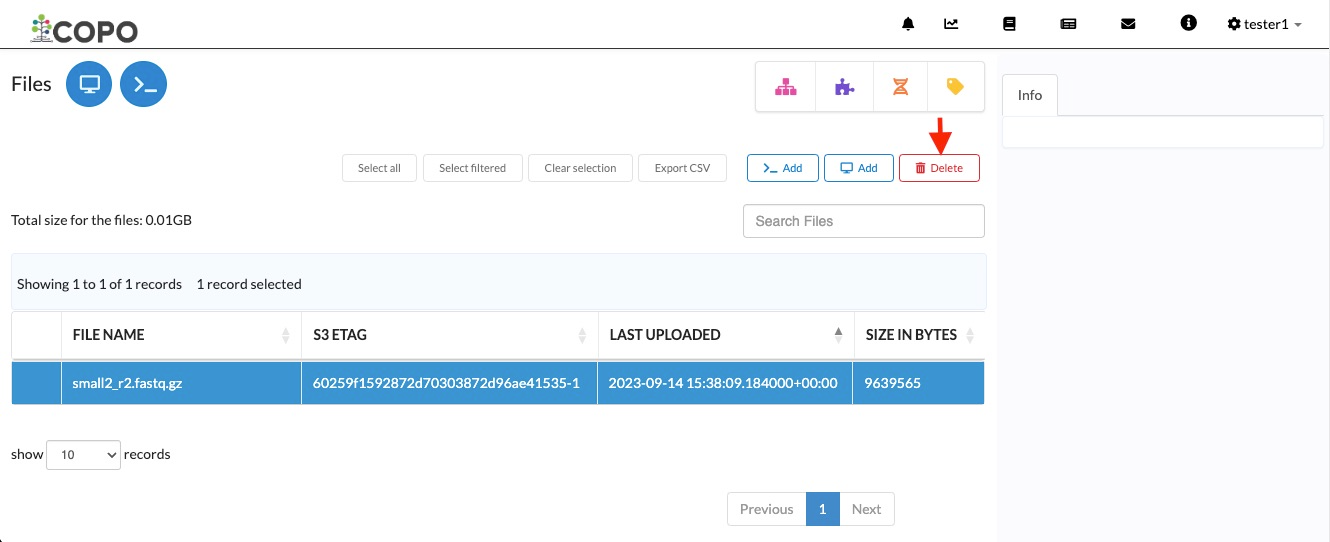
Click the Delete button to remove the selected record.