Publishing Data
Note
The terms making a profile public and publishing data refer to two ways of making data publicly accessible - either at the profile level, where all data under the profile becomes accessible or at the data level, where individual datasets are made public in repositories such as the European Nucleotide Archive (ENA) [1].
Refer to Where Your Submitted Data Goes for more information on supported public repositories.
Tip
Common synonyms for profile [2] are project, bioproject or study. COPO uses the term profile while repositories like ENA use the term project or study.
Publishing Data at Profile Level
This section applies if the submitted data you would like to make public is under a supported Tree of Life (ToL) [3] profile.
Refer to How do I know what type of profile I am using? for guidelines on identifying your profile type.
Note
ToL profiles can be made public only after reads have been submitted and if the profile type supports being published. By default, profiles remain private with a publish date set to two years after submission however, they can be made public at any time before then.
Samples uploaded under a ToL profiles are automatically made public after they are accepted by a sample manager.
Profile type |
Type of data that can be made public |
|---|---|
Aquatic Symbiosis Genomics (ASG) [4] |
Reads, assemblies, sequence annotations, barcoding |
Darwin Tree of Life Samples (DToL) [5] |
Reads, assemblies, sequence annotations, barcoding |
European Reference Genome Atlas (ERGA) [6] |
Reads, assemblies, sequence annotations, barcoding |
Follow the steps below to make the data public at the profile level:
-
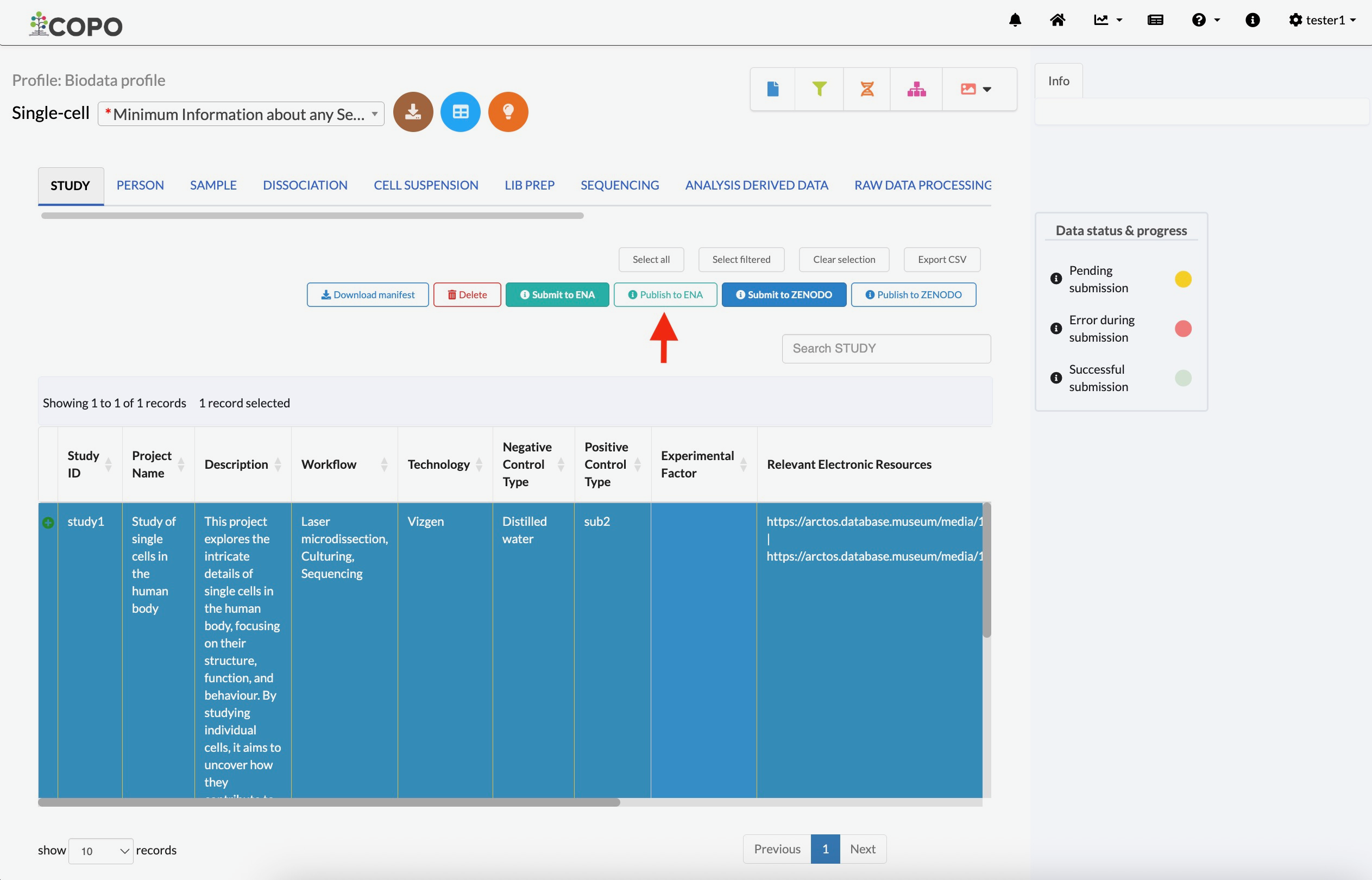
Click the
 icon associated with the
ToL profile. The option to publish the profile will
be displayed once clicked.
icon associated with the
ToL profile. The option to publish the profile will
be displayed once clicked.Then, click the
 button. The profile, i.e. the
project, will automatically be made public and can be viewed in
ENA.
button. The profile, i.e. the
project, will automatically be made public and can be viewed in
ENA.Note
The data will become publicly accessible after a couple of days of processing. If it is still not public after a week, please contact the to investigate.

Make data public by clicking the “Publish study” button
-
Click the
 button to view the profile’s
published status and date.
button to view the profile’s
published status and date.See the How do I view details of a profile I created? FAQ for more details.
To view the published project on ENA, refer to the Finding Data Submission IDs section for guidelines on finding the accession associated with your project or data then, search for it on the ENA browser.
Publishing Data at Data Level
This section applies if the submitted data that you would like to make public is under a Biodata profile [7].
Refer to How do I know what type of profile I am using? for details on identifying your profile type.
Profile type |
Type of data that can be made public |
|---|---|
Biodata |
Reads, Single-cell, images Refer to Biodata Profile Components for an overview of the different types of data that can be submitted |
Follow the steps below to make the data public at the data level:
Navigate to the page corresponding to the relevant data type listed in the table above.
-
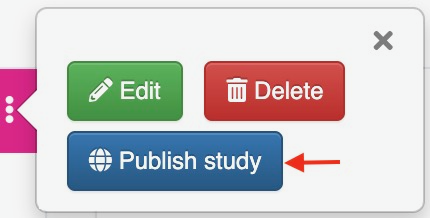
After uploading data, select a record in the data table under the STUDY tab.
Hint
The first row of the data table under the STUDY tab is selected by default. Selected rows are indicated by a blue background colour.
-
Click the publish button related to the repository you would like to make the data public in.
The following repositories are supported:
European Nucleotide Archive (ENA) via
 button
Zenodo via
 button
The data related to the selected record will automatically be made public and can be viewed in the associated repository.
Note
The data will become publicly accessible after a couple of days of processing. If it is still not public after a week, please contact the to investigate.

Make data public by clicking the “Publish” button on the Single-cell page