Uploading Data Files
Hint
If you plan to make submissions to the European Nucleotide Archive (ENA), visit the assembly submission file types documentation on ENA to see the types of data files that can be submitted in COPO for assembly submissions and the ENA read submission file types documentation for files supported for read submissions.
Accessing the Data Files Page
The Data files page can be accessed from the Components button associated with a profile [1].
Using the Components Button
Click the  component button in the Components
column as shown below:
component button in the Components
column as shown below:
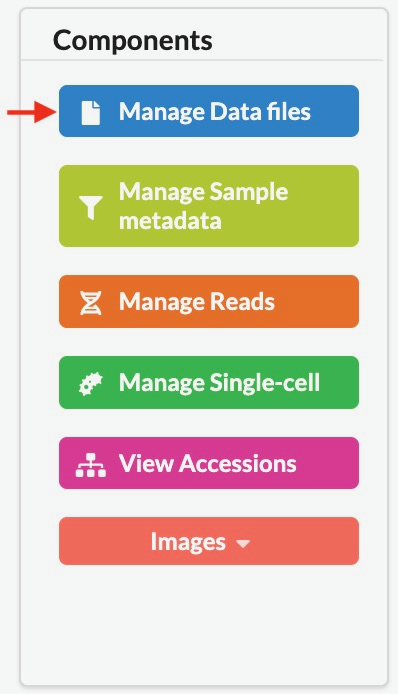
Button used to open the Data files page (highlighted)
Submit Files from your Local (Computer) System
Note
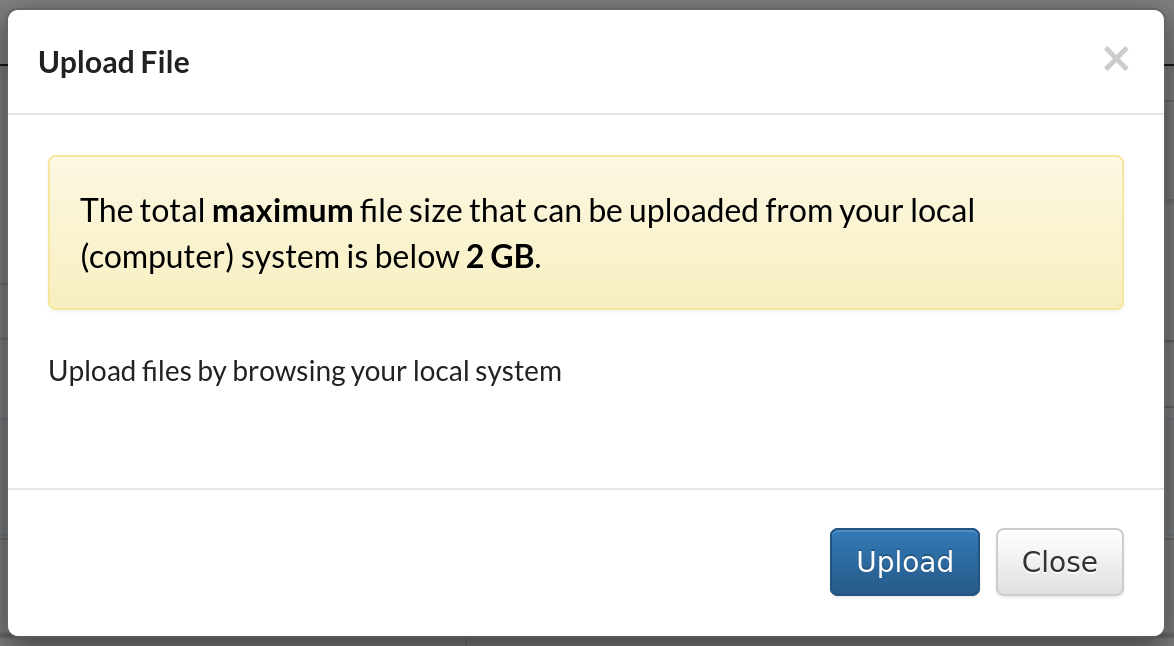
The total maximum file size that can be uploaded from your local (computer) system is around 2 GB. If you have a file larger than 2 GB or have multiple files whose combined total size exceeds 2 GB, please submit the file(s) via the terminal.
-
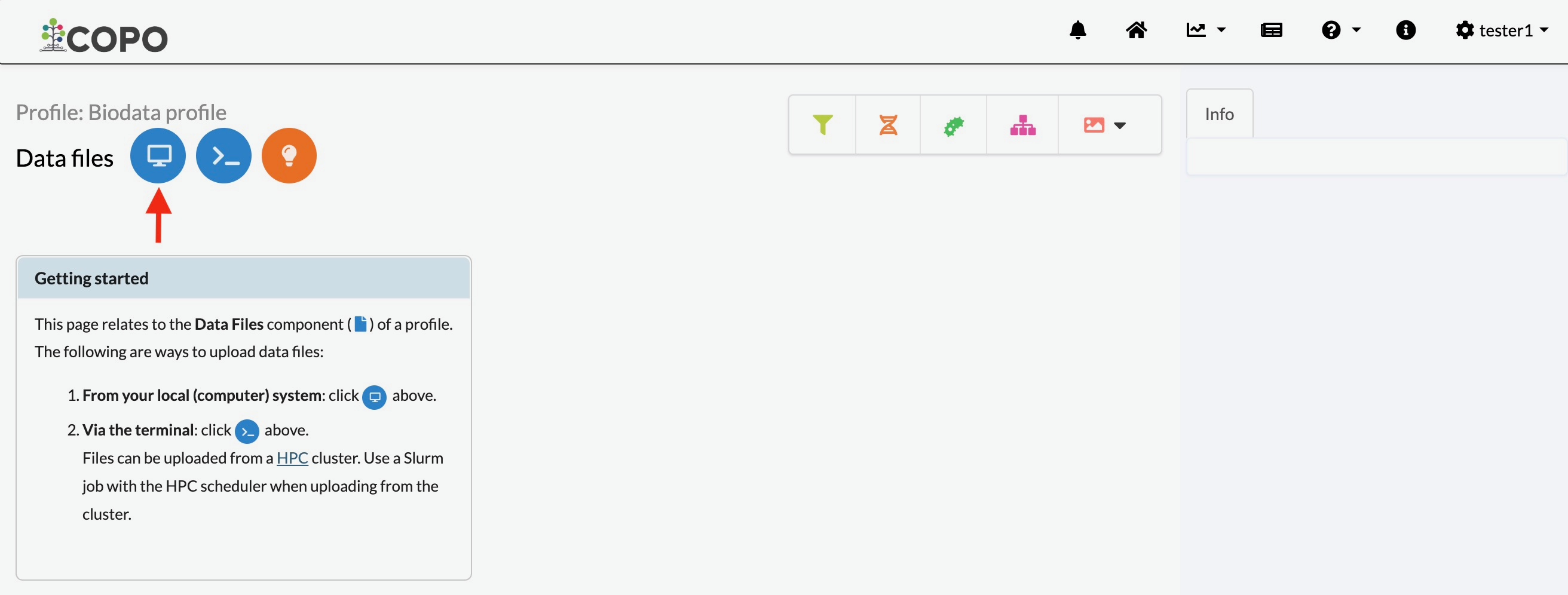
Click the
 button on the Data files page to
add a new file by browsing your local file system
button on the Data files page to
add a new file by browsing your local file system
Button to add a new file by browsing your local file system
-
An Upload File dialogue is displayed. Click the Upload button to choose a file from your local system.

Dialogue for uploading data files
-
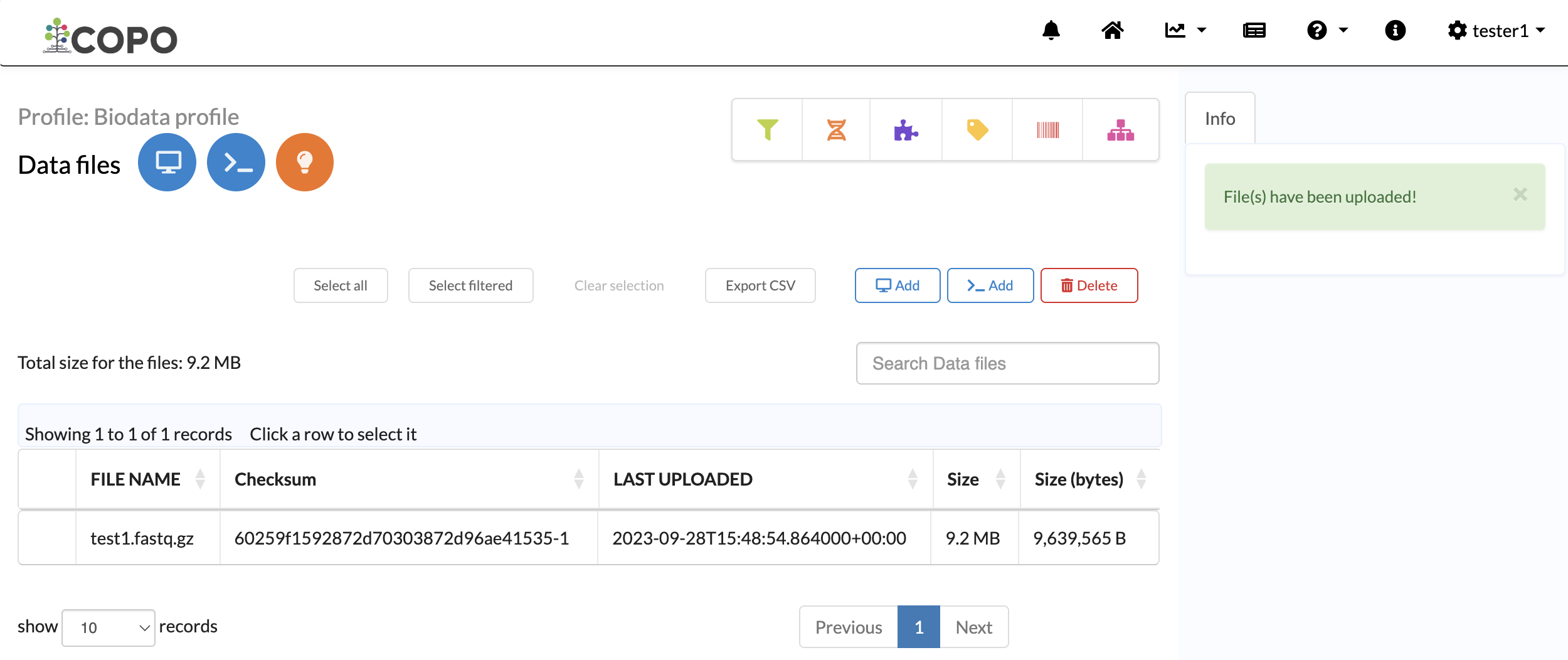
The new file(s) will be displayed on the Files page after a successful submission.

Data files page showing uploaded files
Hint
To add more files from your local system, click the
 button (once files have been
submitted to the profile) as an alternative to clicking the
button.
button (once files have been
submitted to the profile) as an alternative to clicking the
button.
Submit Data Files via the Terminal
-
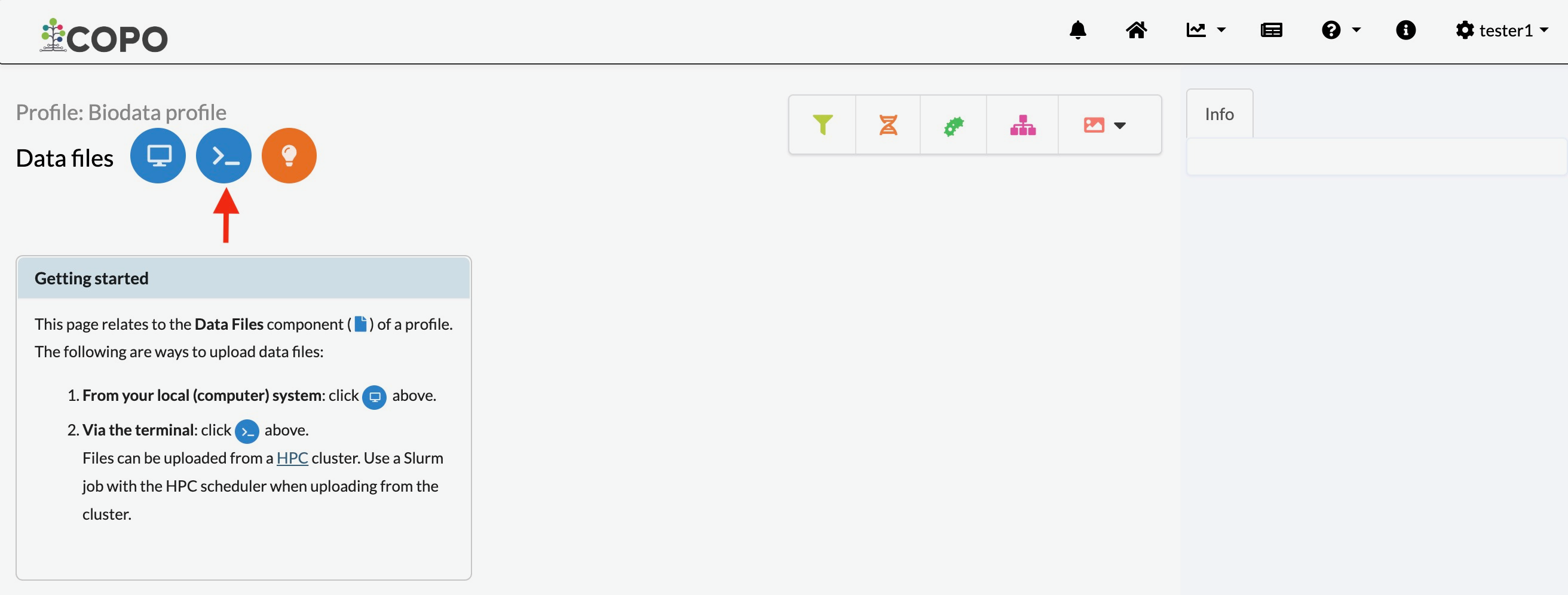
Click the
 button on the Data files page to
add a new file from a cluster via the terminal.
button on the Data files page to
add a new file from a cluster via the terminal.
Files page: ‘Add new file via terminal’ button
-
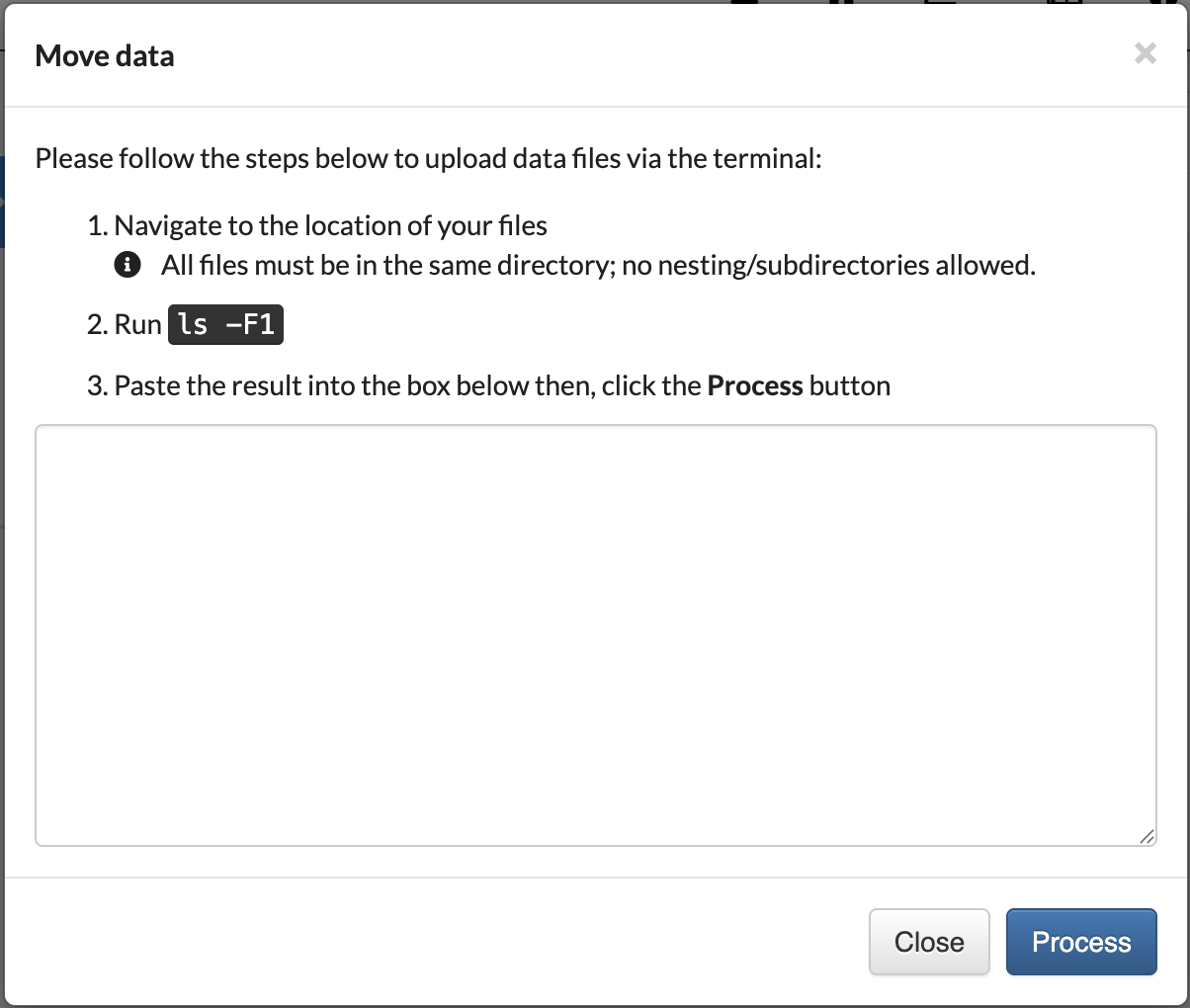
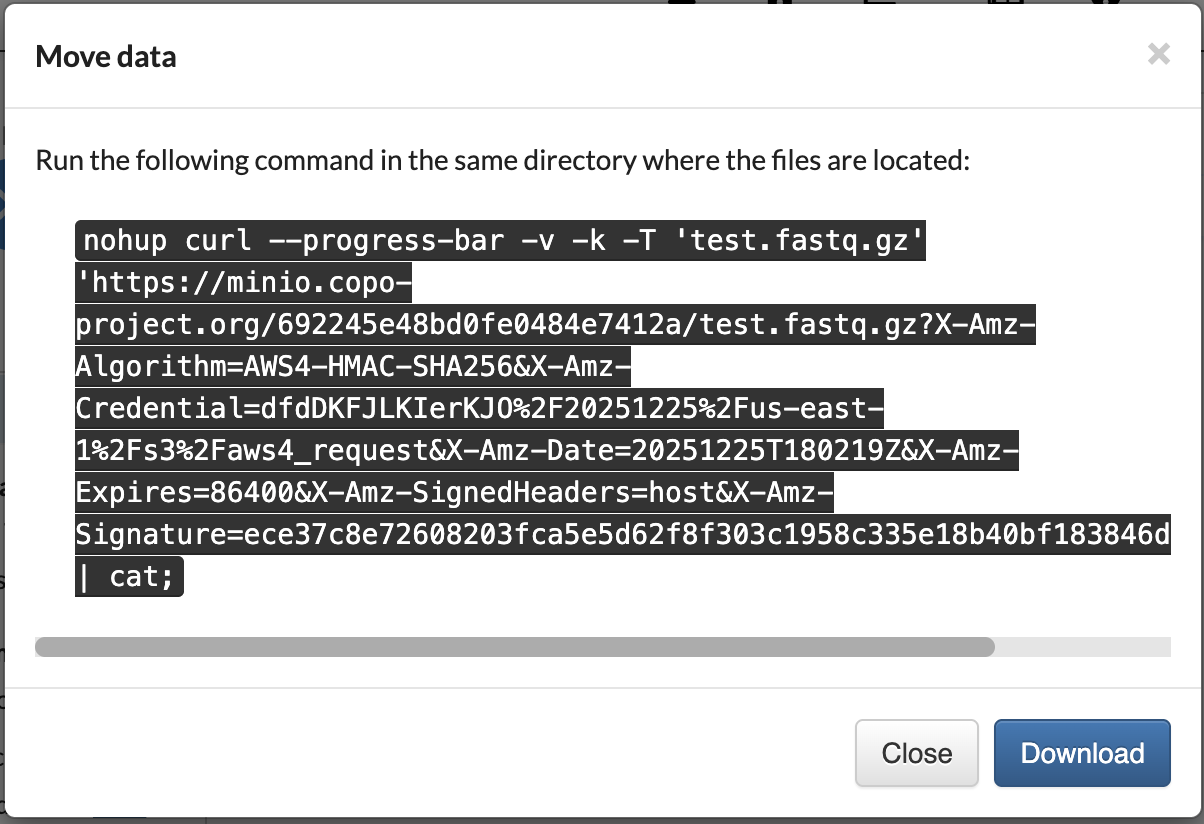
A Move Data dialogue is displayed. Follow the instructions displayed then, click the Process button to submit the file(s) to the profile.

Files submission: Move Data dialogue

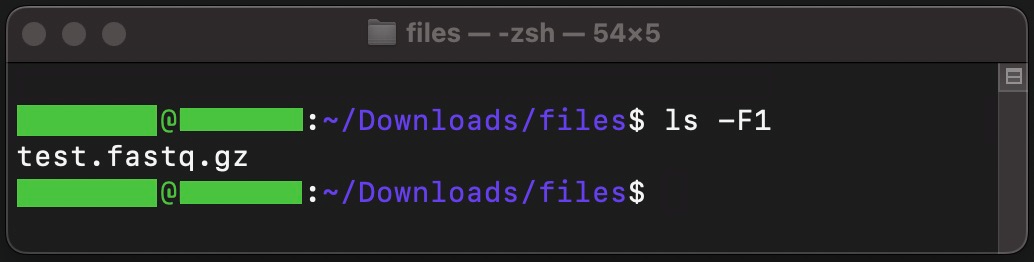
Input $
ls - F1command in the terminal

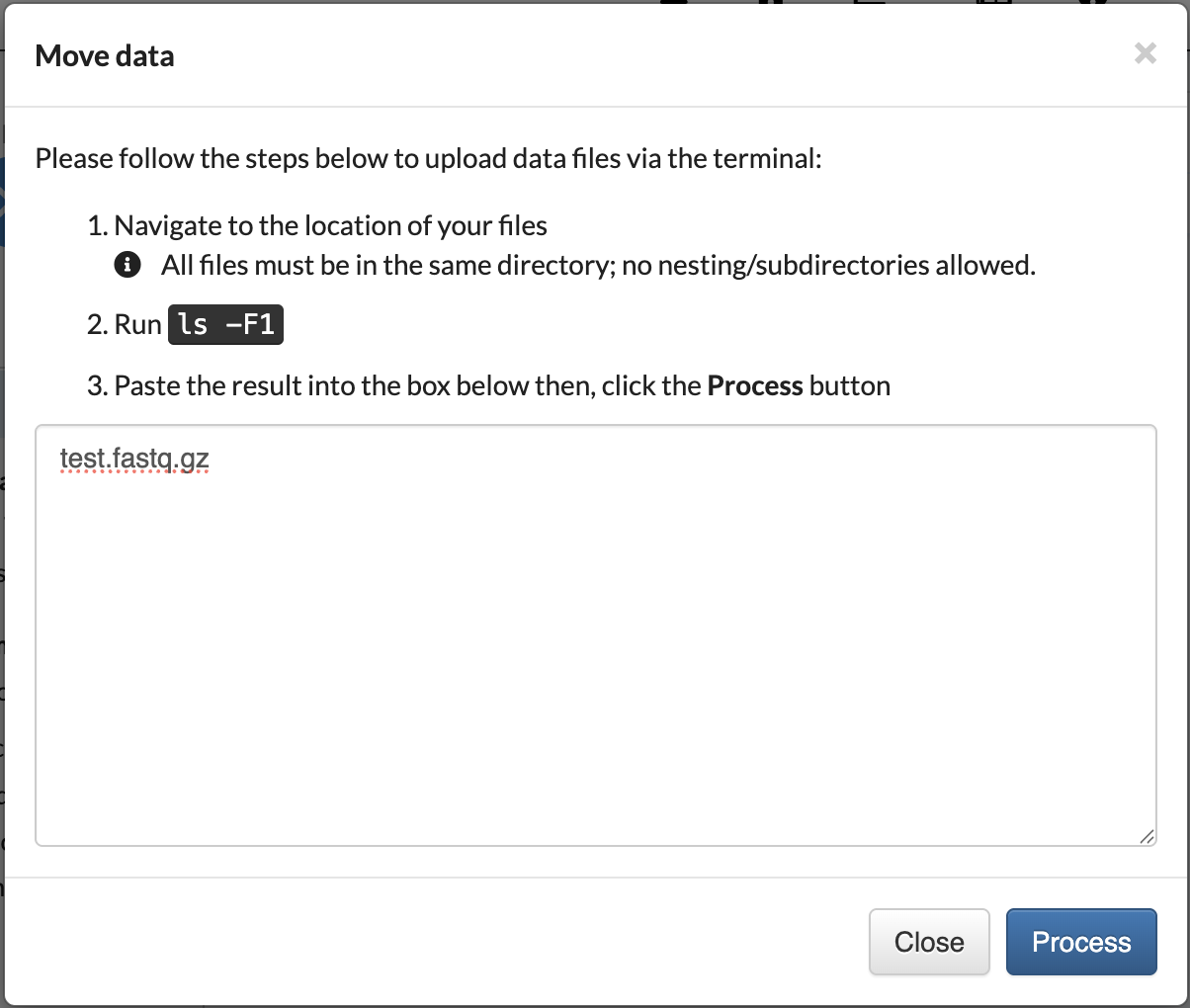
Move Data dialogue: Input the file name(s) returned after having ran the $
ls - F1command in the terminal. Then, click theProcessbutton.

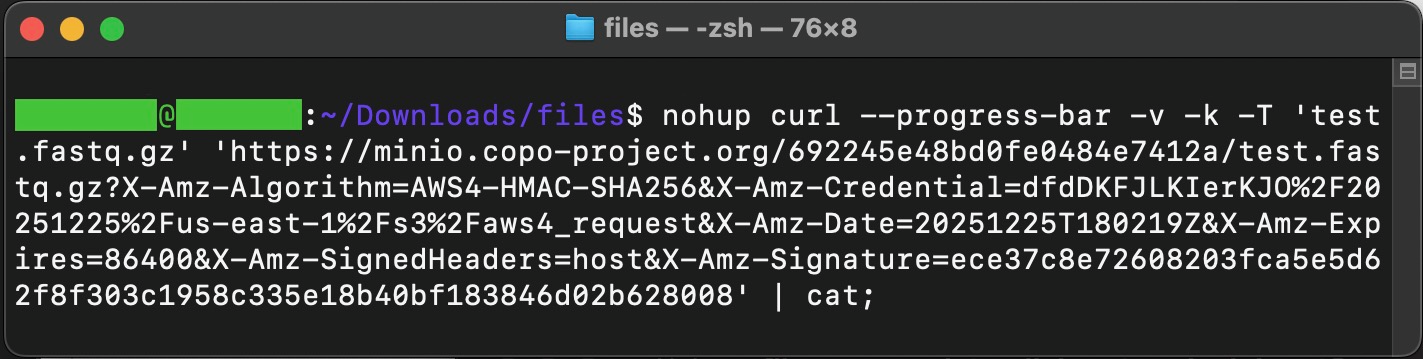
Move Data dialogue: Command outputted after having clicked command in the
Processbutton. Download the command displayed.The downloaded file will have unknown or download as the file name depending on the browser you are using.

Paste the copied command in the terminal
Alternatively, you can make the downloaded file executable then, run the file in the directory where the files are located:
-
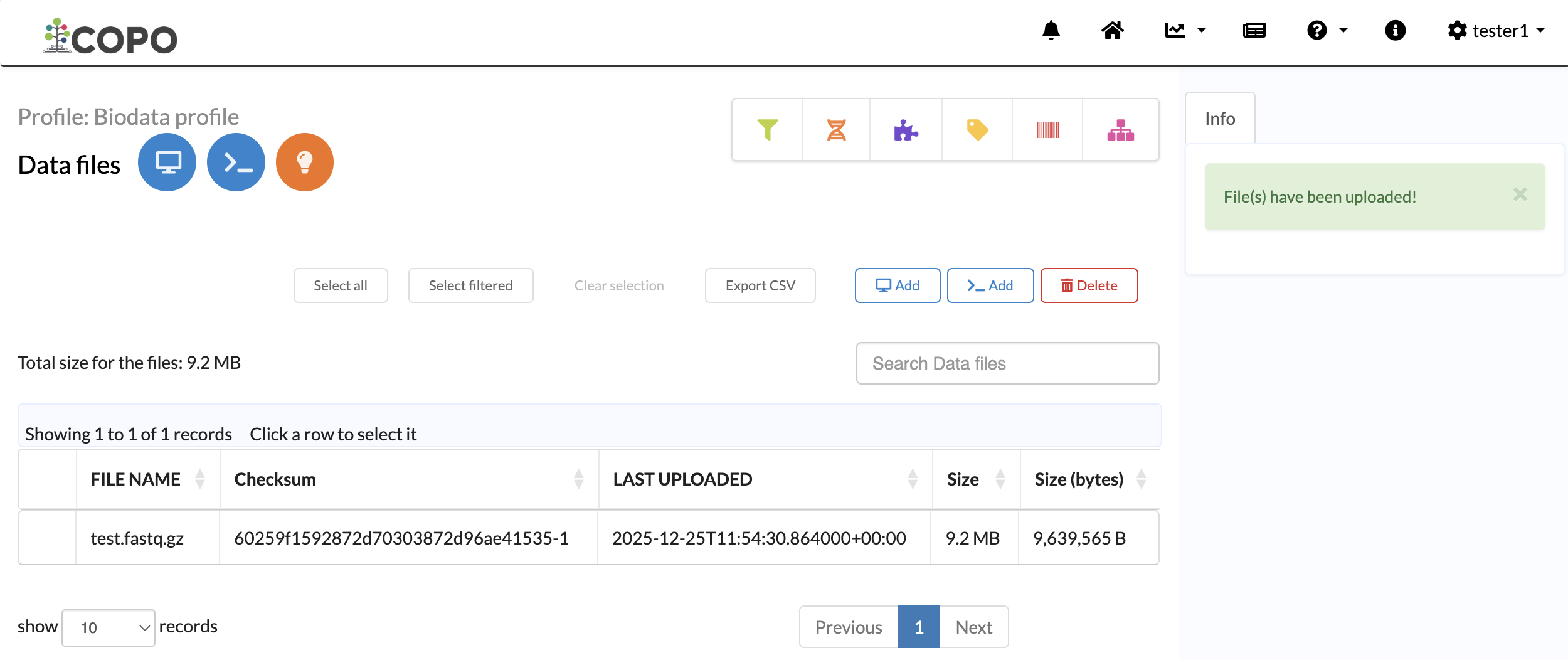
The new file(s) will be displayed on the Files page after a successful file submission via the terminal i.e. after the command has been executed successfully in the terminal.

Files submission: Files page displaying the uploaded file(s)
Hint
To add more files via the terminal, click the
 button (once files have been
submitted to the profile) as an alternative to clicking the
button.
button (once files have been
submitted to the profile) as an alternative to clicking the
button.
Checking ENA File Processing Status
Note
Reads, annotations or assembly submission must be completed before the data files can be uploaded to European Nucleotide Archive (ENA).
After completing a reads, annotations or assembly submission and associating data files with it in COPO during the submission process, the files are submitted to European Nucleotide Archive (ENA).
The upload status from COPO to ENA is displayed in the ENA FILE UPLOAD STATUS column. This status shows whether the file(s) have been successfully uploaded to ENA after submission.
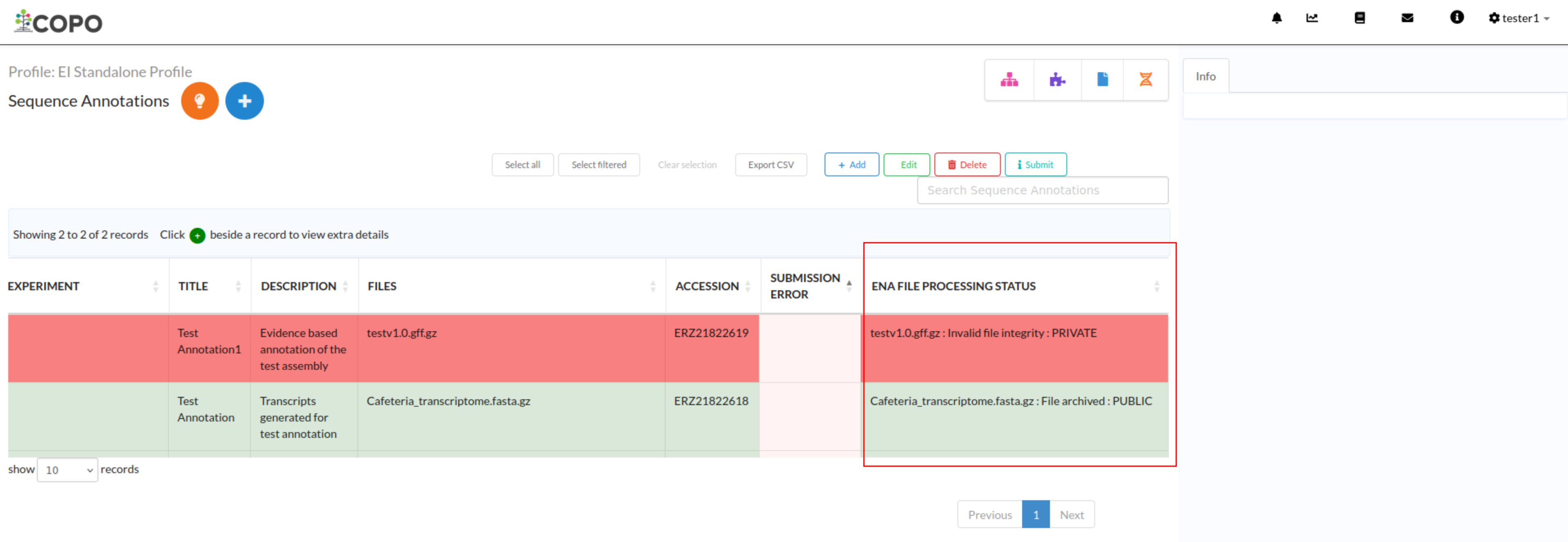
The file processing status of the file(s) uploaded to the ENA can be checked in the column, ENA FILE PROCESSING STATUS, on the reads, sequence annotations or assembly page. This status indicates that ENA is verifying and validating the submitted file(s).
The ENA FILE PROCESSING STATUS column is highlighted with a red rectangle border in the image below:
Hint
Rows with a status of File archived: PUBLIC or File archived: PRIVATE or in a green colour indicate that the file(s) have been successfully submitted to ENA.
Rows with a status of Invalid file integrity: PRIVATE or in a red colour indicate that the file(s) failed to be submitted to ENA.
According to ENA, accessions that follow the format,
ERZxxxxxxxrefer to a private accession number that is not visible outside ENA.