Submitting Barcoding Data
Note
-
Submit samples before uploading Barcoding manifests. See Samples submission for details.
Once samples have been submitted and approved, their biosample accessions, specimen IDs and taxon IDs are needed to fill in a barcoding manifest.
Barcoding manifest submissions can only be done via a Tree of Life (ToL) [1] profile [2]. Please see: Steps to Create a Tree of Life Profile for guidance.
Accessing the Barcoding Manifest Page
The Barcoding manifests page can be accessed from the Components button associated with a profile.
Using the Components Button
Click the  component button in the
Components column as shown below:
component button in the
Components column as shown below:
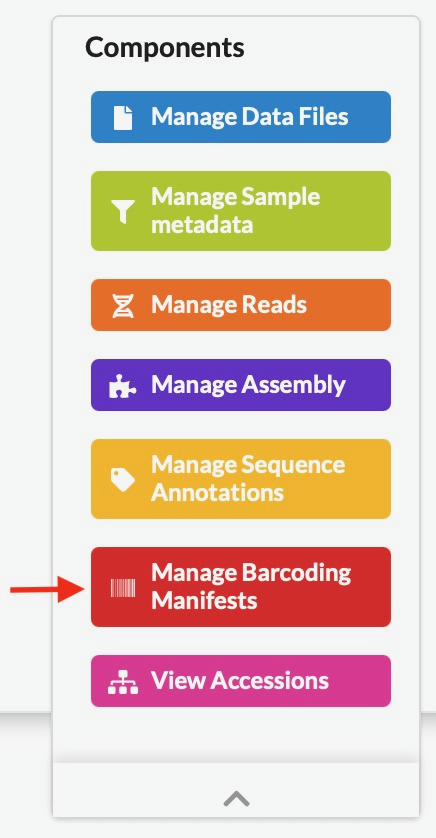
Button to access the Barcoding manifest page (highlighted)
Using the Components Icon Navigation Pane
If you are unsure what each icon represents, you can perform any of the following:
Hover over the icon in the component icon navigation pane to see a tooltip with the component’s name
Refer to the component button image above
Refer to the What are profile components? FAQ
Note
The navigation pane will not display the icon associated with the page that is currently being viewed.
If a component has subcomponents, a dropdown menu is shown when at least two items are available. However, if you are viewing a subcomponent’s page and only one item remains, that item is displayed directly in the navigation pane.
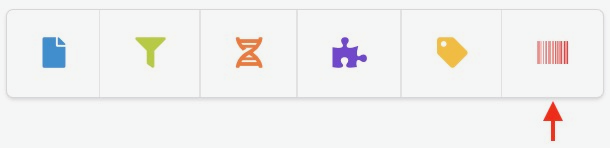
Navigation pane showing the Barcoding manifest component icon
Upload Data
Tip
In the Barcoding Manifest, the field, Organism, refers to the biosample accession of the sample.
-
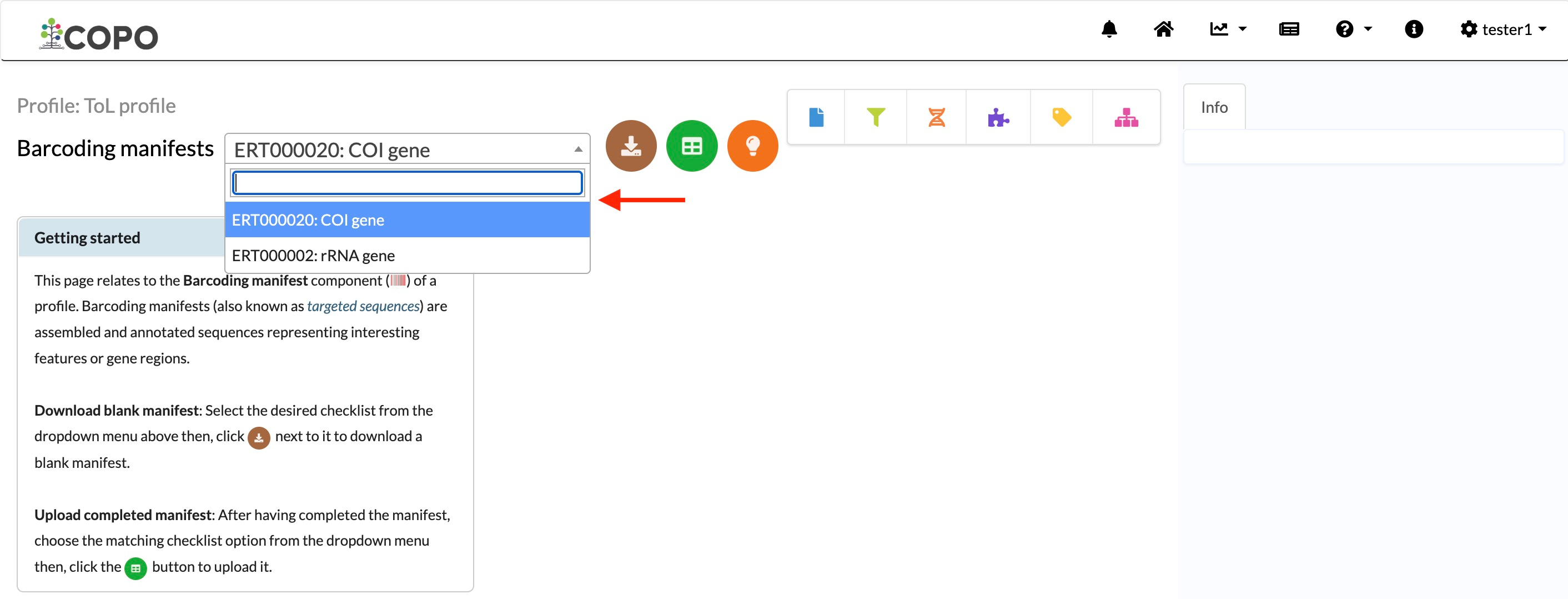
On the Barcoding manifests page, click the dropdown menu to choose a checklist [3]. Hover over each option to view its description.

Checklist options for Barcoding manifest submissions
-
Click the
 button to
download a blank manifest [4].
button to
download a blank manifest [4].A manifest is a spreadsheet file used to record metadata for submission.
-
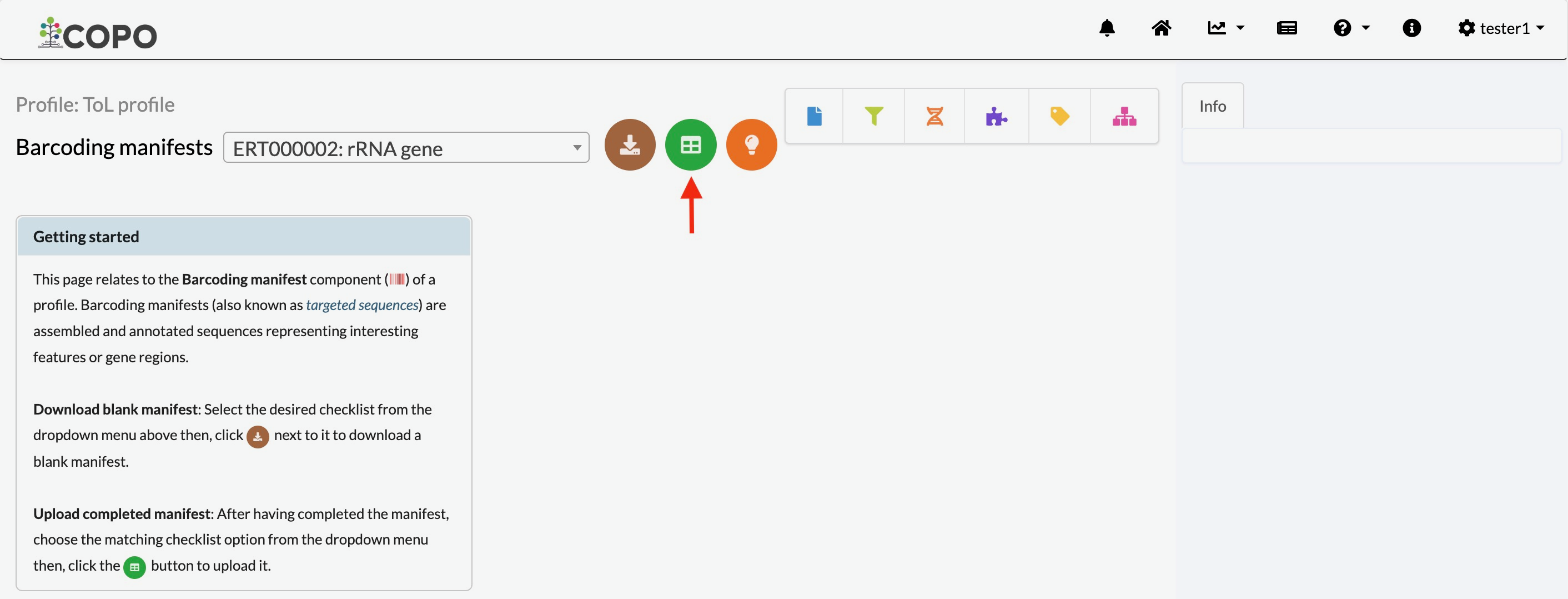
Click
 button to upload
a completed Barcoding manifest.
button to upload
a completed Barcoding manifest.Note
Please ensure that the manifest that you are uploading matches the checklist type selected in step 1. You will encounter errors if the uploaded manifest does not correspond with the selected dropdown menu checklist option.
The colour of the
button is
based on the type of profile that you are submitting a barcoding
manifest for. See the Profile Types Legend section regarding
the colour code for the various types of project profiles on COPO.
Hint
Tagged sequence is another term for barcoding data.

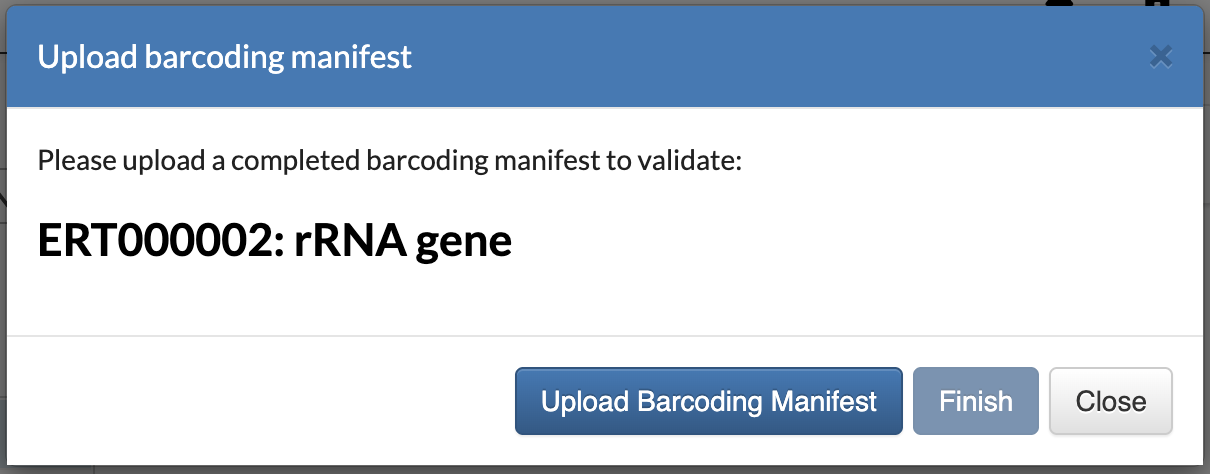
Click “Add tagged sequences from spreadsheet” button to open an upload dialogue
-
A dialogue is displayed. Click the
 button
to choose a spreadsheet file from your local system.
button
to choose a spreadsheet file from your local system.
Click ‘Upload Barcoding Manifest’ button
-
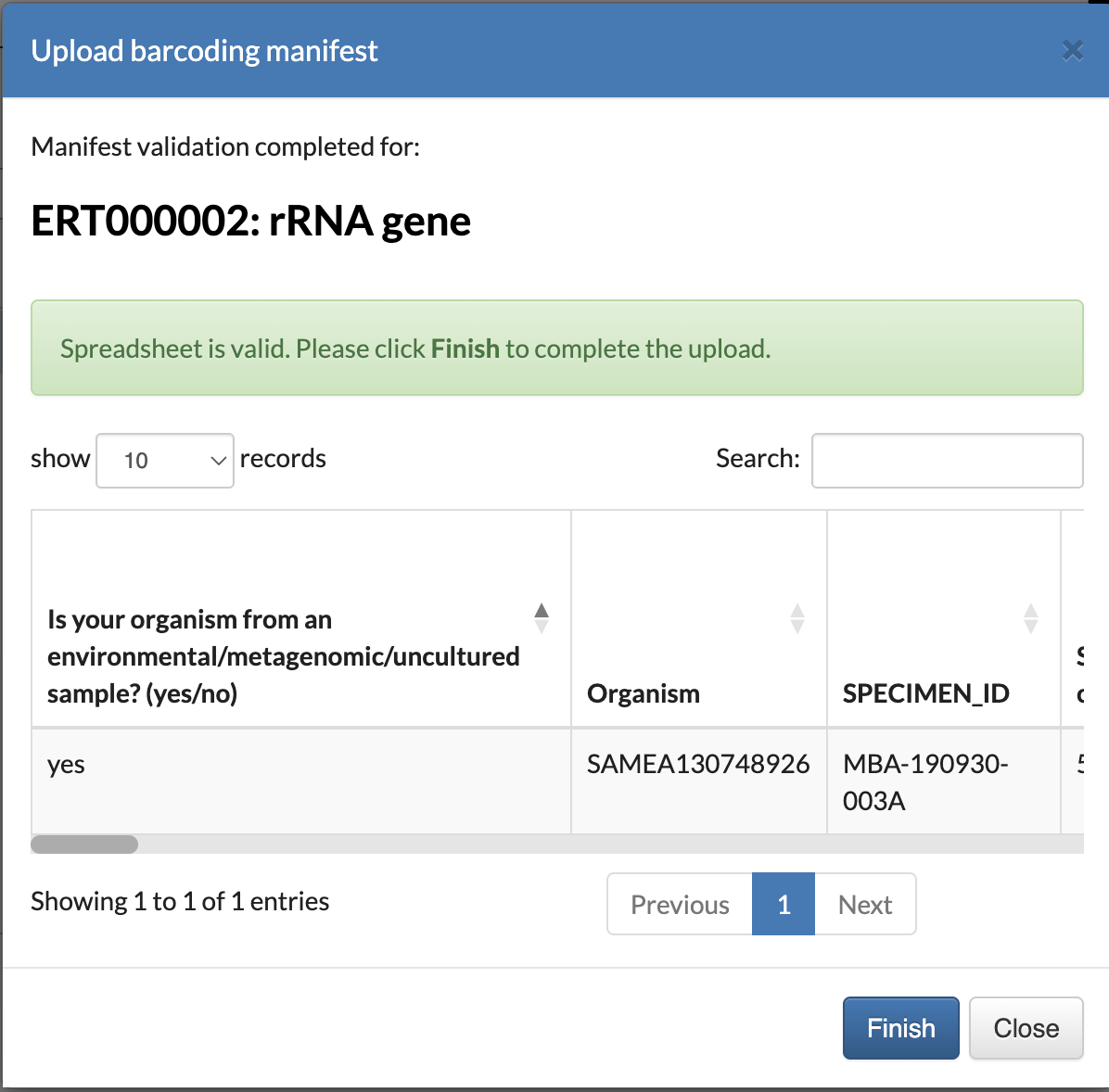
The uploaded data is shown in a preview before final submission. Click
 button to finalise the upload.
Barcoding manifest upload preview
-
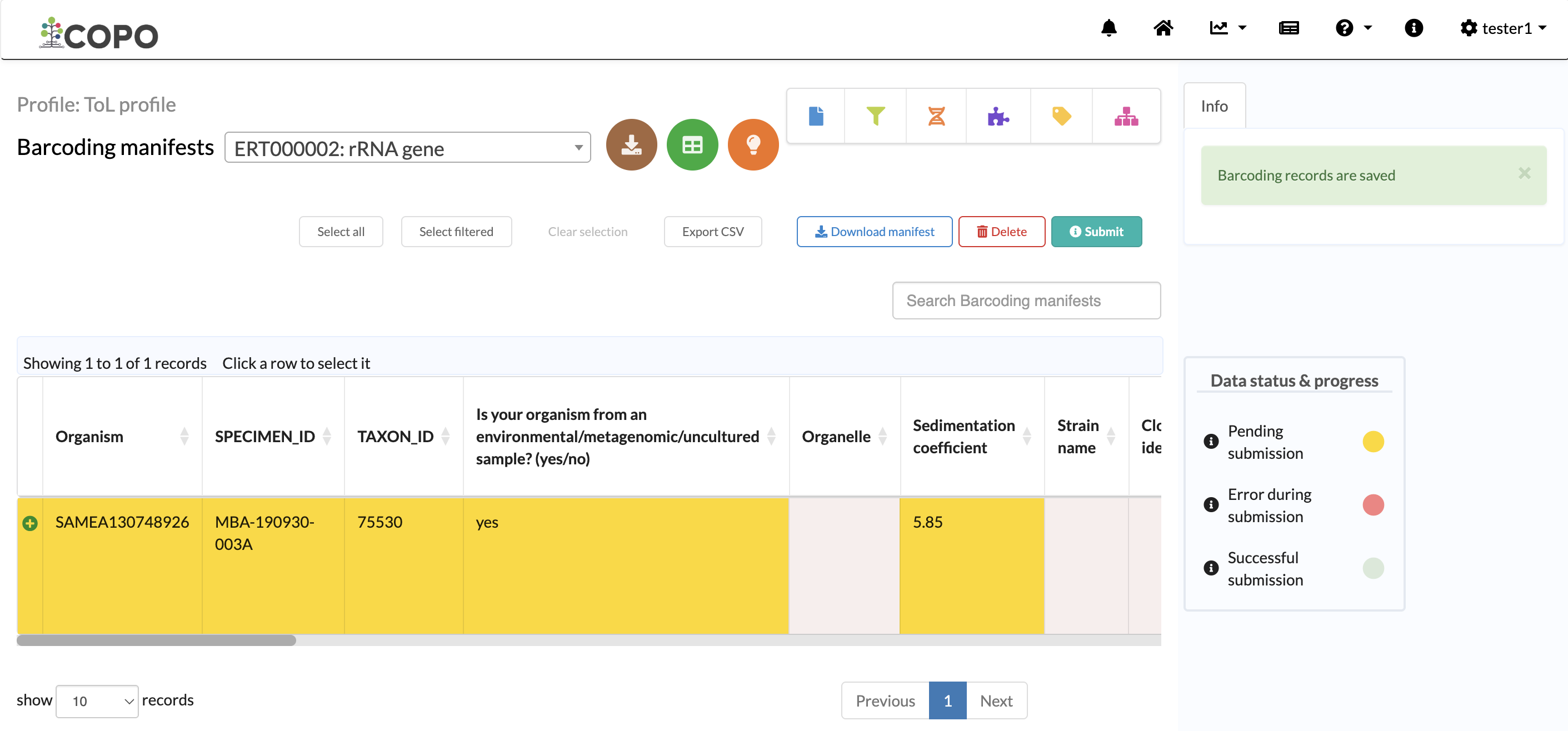
The new barcoding data will be displayed on the Barcoding manifests page after a successful submission.

Barcoding manifest page showing the uploaded data
Submit Data
Note
Follow the steps in Upload Data to upload a barcoding manifest before proceeding with the submission.
-
The following repositories are supported for Barcoding manifest submissions:
European Nucleotide Archive (ENA) via
 button
-
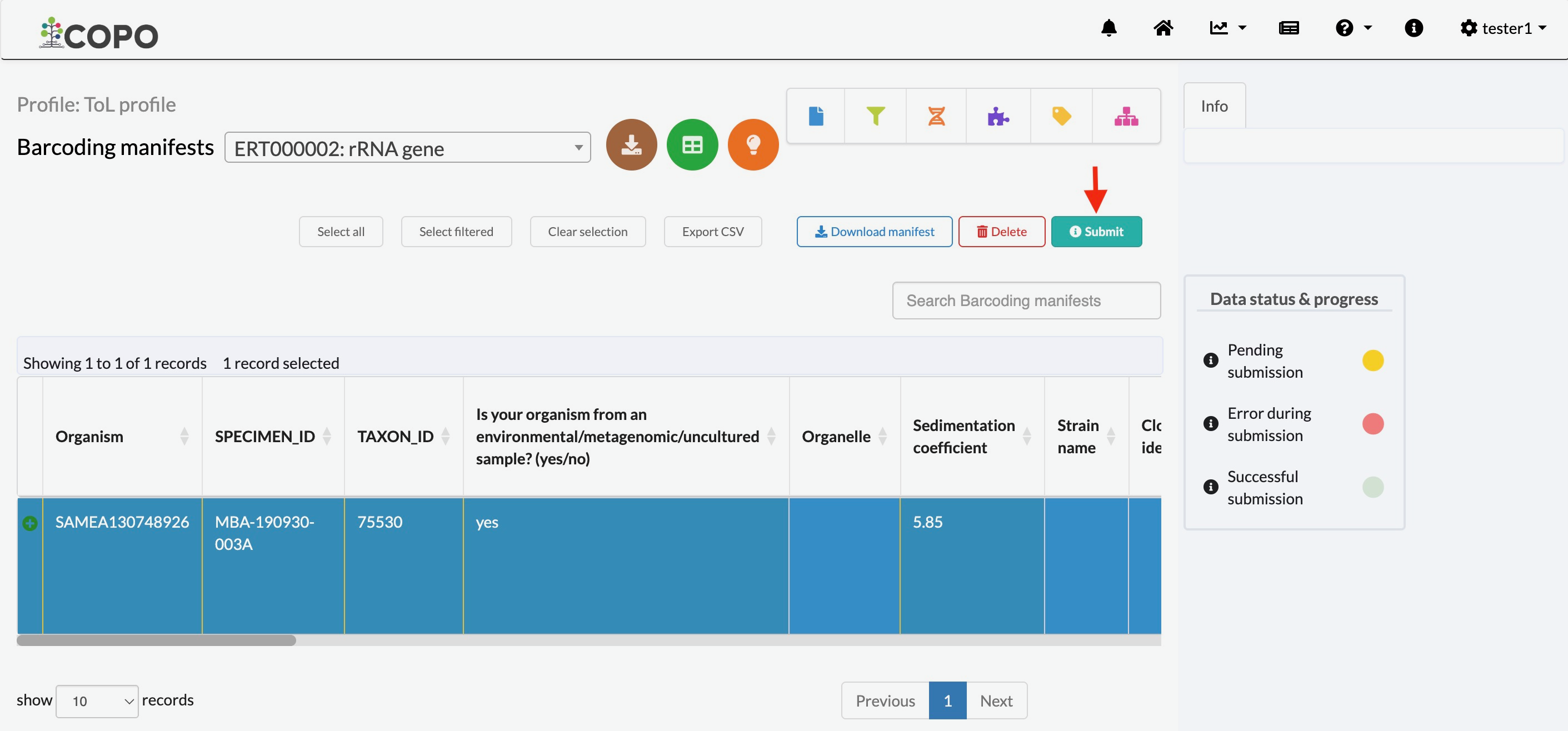
After uploading data, select a row in the data table then, click the Submit button (located in the top-right corner of the table) as shown below.
Note
Please ensure that the selected record is under the desired checklist option. If not, choose another option from the dropdown menu, then select a row in the data table.

Click “Submit” to submit the data for the highlighted row
-
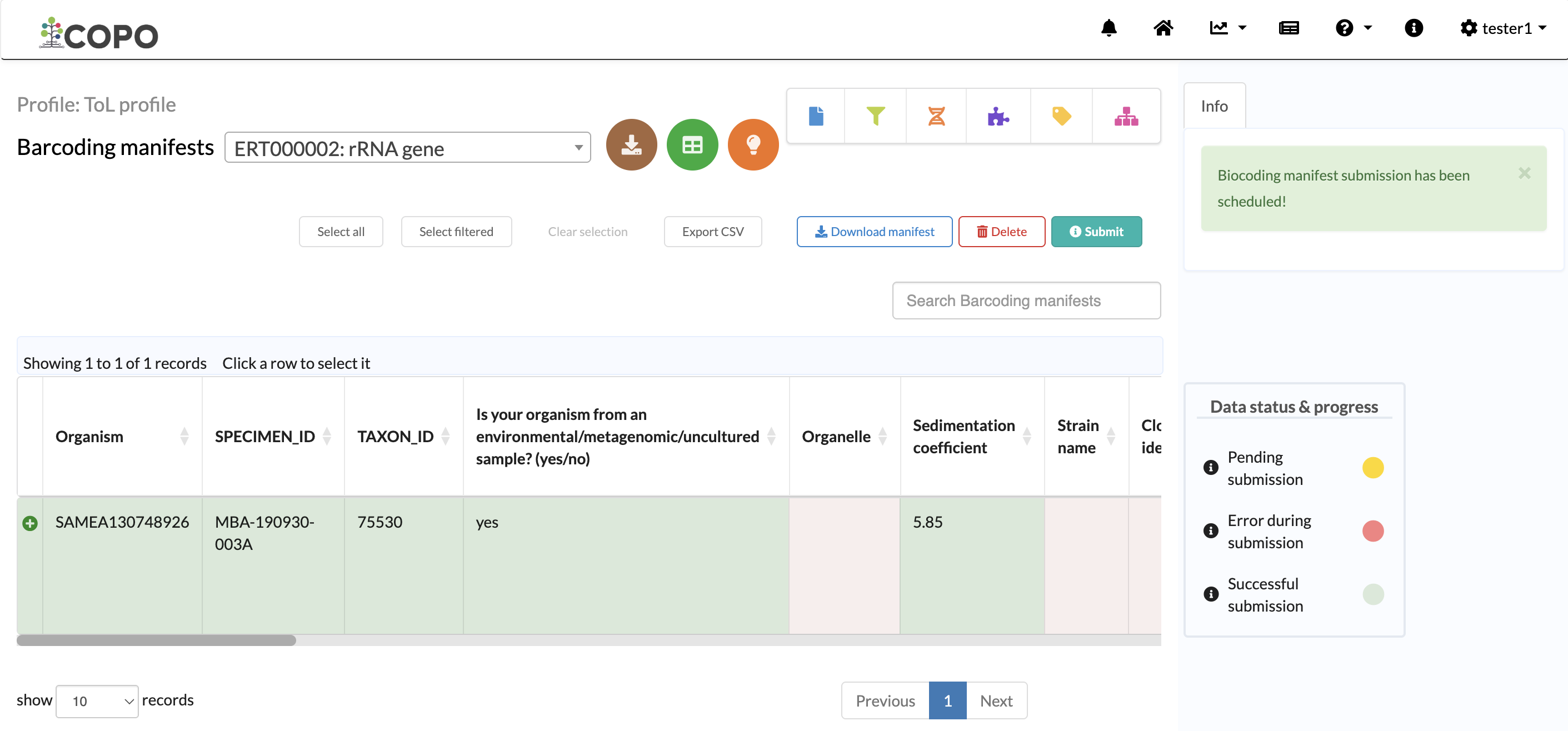
Wait for the submission process to be completed. The status and accessions of the submitted records can be viewed in the data table. See the sections below for details.

Barcoding manifest has been submitted
Make Data Public
Submissions are private by default. You can make the data publicly accessible by referring to the steps in the Publishing Data at Profile Level section.
View Submission Status
Hint
The Data status & progress legend, located on the right side of the
data table, shows the different stages of submission processing. Hover over
the  to see description for each status.
For more details, see the How can I check the status of my data submissions? FAQ section.
The submission will be scheduled for processing after the
button is clicked.
The row of the submitted record will be highlighted in green indicating that
the submission has been successful.
If the submission was unsuccessful or has not been assigned any accessions, the table row will be highlighted in red. Its status is indicated in the following columns:
STATUS - Displays the status returned from the repository, European Nucleotide Archive (ENA), assigned to the project
ERROR - Displays any error message associated with the submission.
View Accessions
Accessions are unique identifiers assigned to submissions after they have been successfully submitted to public repositories.
The accession columns are:
ACCESSION - Displays the unique identifier assigned by European Nucleotide Archive (ENA) after a successful submission.
Clicking any accession in the data table will open the corresponding record in the associated repository. You can also find the same record by searching for the accession directly in the repository.
Tip
Alternatively, click the  icon located in the
top-right corner of the data table to navigate to the Accessions page
that displays accessions for all submissions.
icon located in the
top-right corner of the data table to navigate to the Accessions page
that displays accessions for all submissions.
Deleting Barcoding Data
Note
Barcoding data can only be deleted before they have been submitted.
Click a row in the data table on the Barcoding manifests page then, click the Delete button (located in the top-right corner of the table) as shown below:
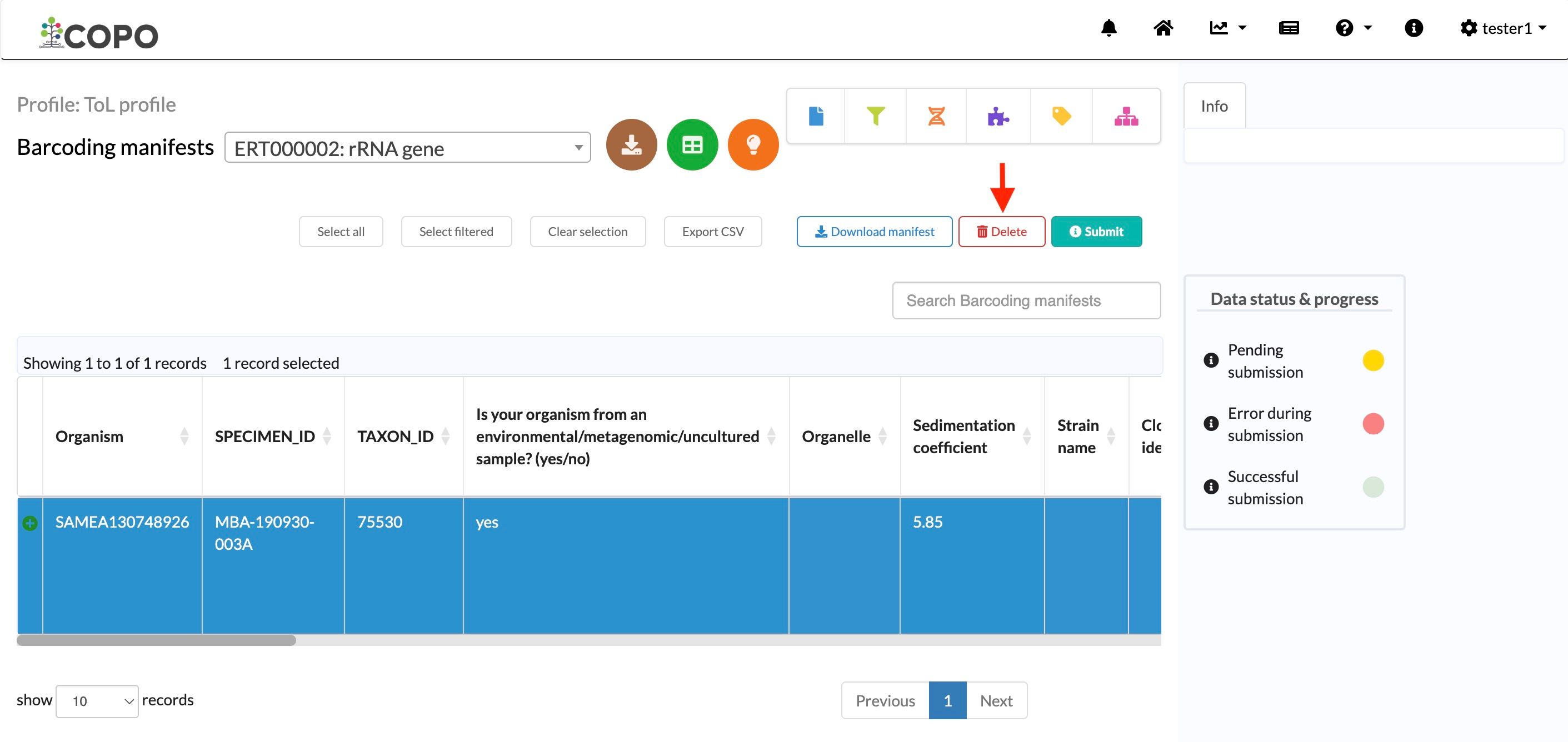
Click the Delete button to remove the highlighted data record
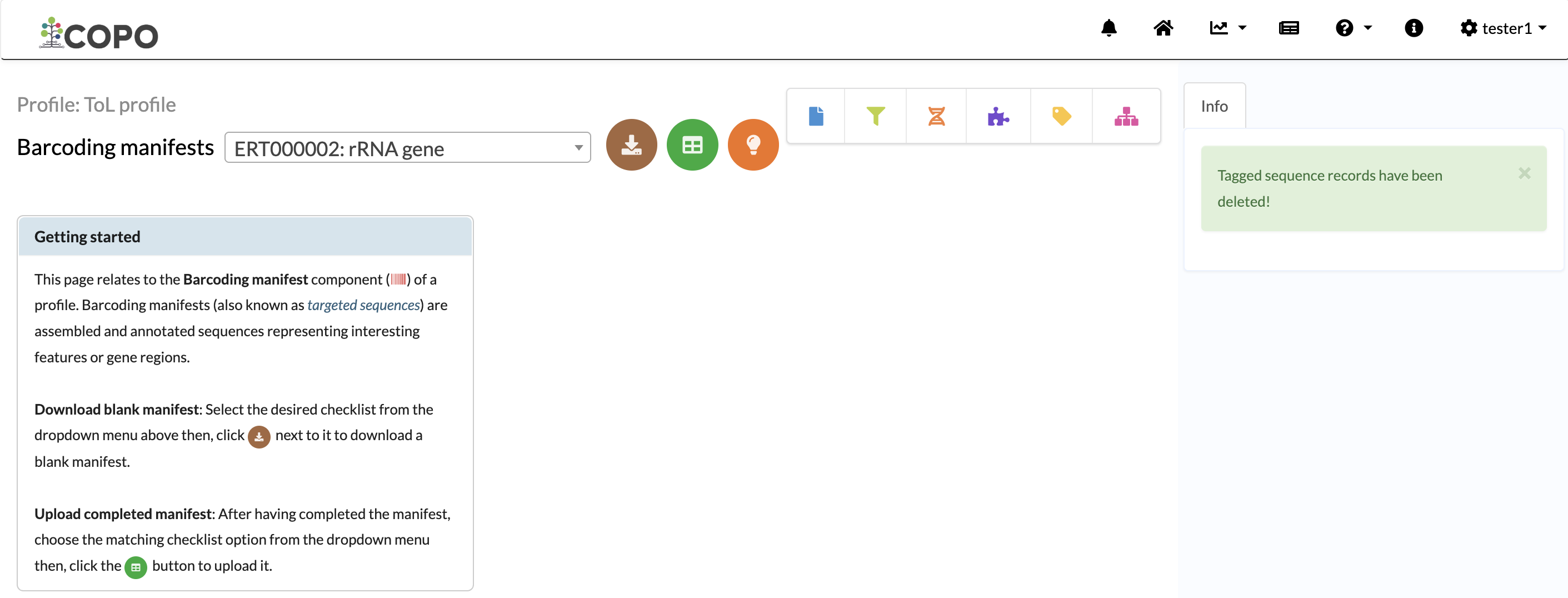
Barcoding manifest page showing that the data has been deleted