Tree of Life (ToL) profile [1] is a work profile that is used to submit
research objects [2] such as barcoding data, sequence annotations and
other data.
See the components section below for the types
of data that can be submitted using this profile.
Currently, the following projects are supported. Refer to the affiliated
projects section for additional information.
Aquatic Symbiosis Genomics (ASG)
Darwin Tree of Life (DToL)
Darwin Tree of Life Environmental (DToL_ENV)
European Reference Genome Atlas (ERGA)
Hint
Work profiles created in COPO are regarded as project research objects.
Projects are created in European Nucleotide Archive (ENA) [3] after
reads have been submitted. Thus, any modifications that
you would like to be made to a project in
ENA must be done to the respective
profile in COPO.
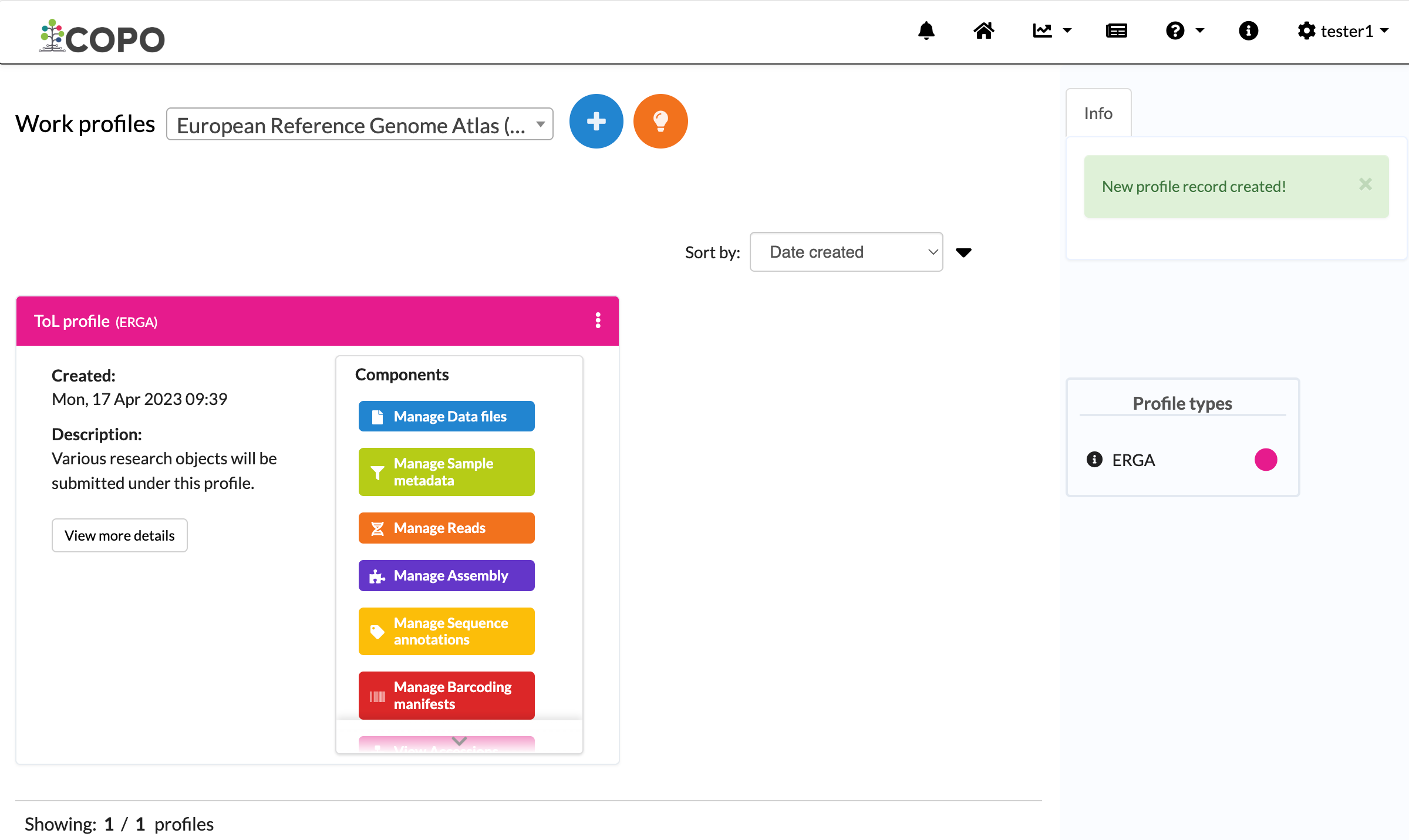
On the Work profiles page, choose a profile type from the dropdown menu,
as shown below. By default, only the Biodata profile option is displayed.
Then, click the Add new profile record button to view
the Add Profile form for the profile
type.
Important
If the profile type or project you need is not shown in the dropdown menu,
please and
specify the profile group you would like access to. Once access is granted,
the profile type will appear in the dropdown menu alongside the default
Biodata profile type.
When creating a new profile, please ensure that you select the correct
profile type from the dropdown menu.
Dropdown menu showing all projects you have access to, including the
default “Biodata” profile
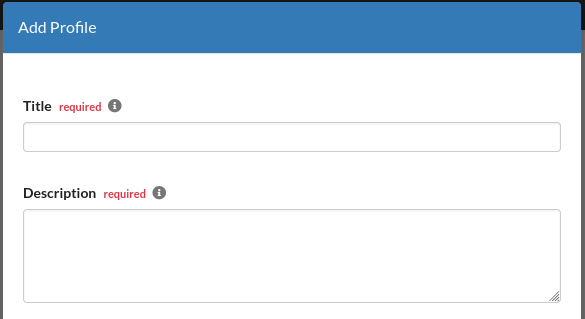
Both title and description are mandatory information.
Meaningful field values are recommended in the form boxes because the
information will appear in submissions of the research objects associated with
the profile, in public remote repositories.
Provide title and description for the new profile
The Associated Profile Type dropdown menu is displayed only when the
European Reference Genome Atlas (ERGA) profile type is selected.
Selecting an associated profile type is mandatory when creating an
ERGA profile.
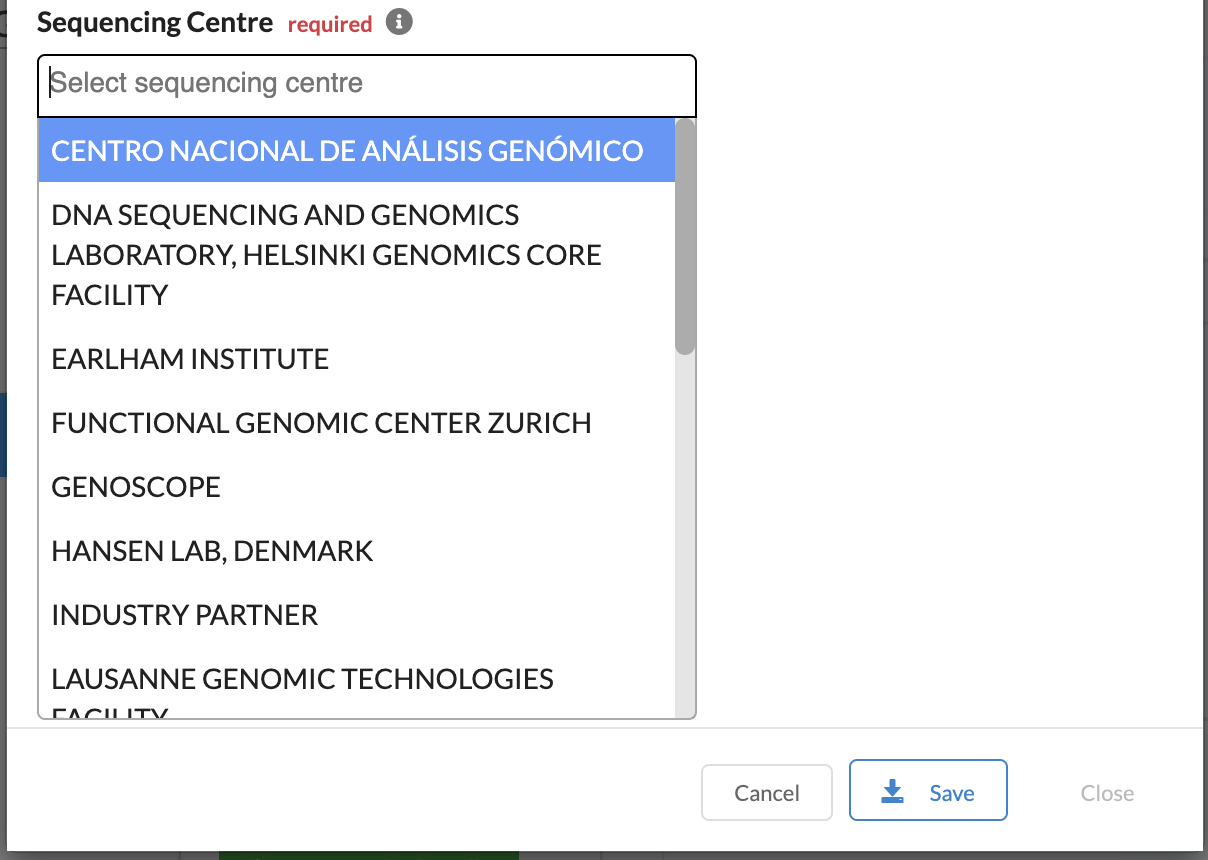
The Sequencing Centre dropdown menu is displayed only when the
European Reference Genome Atlas (ERGA) profile type is selected.
Selecting a sequencing centre is mandatory when creating an
ERGA profile.
If SANGER INSTITUTE is selected as the sequencing centre, the
Associated Profile Type field will automatically be set to
Sanger Institute Approval Needed (SANGER).
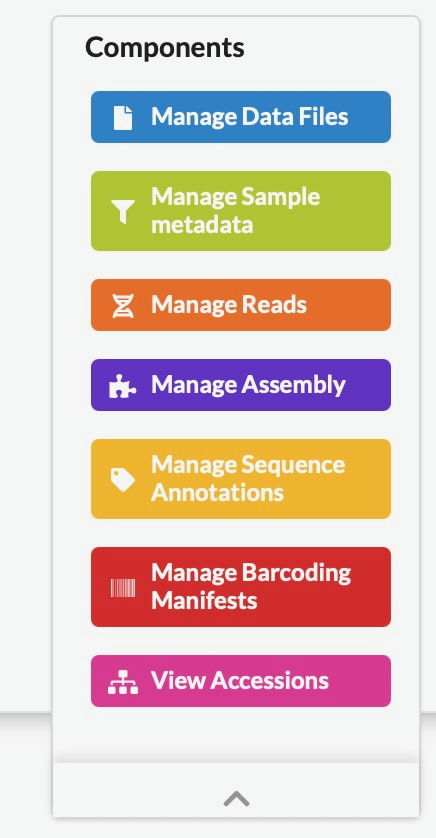
The different types of data created within a profile are called
profile components and can be accessed from the Components column.
Clicking any button in this column will take you to the page for that
component (see the Tree of Life profile components image below).
 Add new profile record button to view
the Add Profile form for the profile
type.
Add new profile record button to view
the Add Profile form for the profile
type.