Tree of Life Profile Sample Submission
The sample types listed below correspond to different profiles or projects within the Tree of Life (ToL) [1] programme.
Spreadsheet files, known as manifests [2], are used to record sample metadata for submission. The sample submission process is the same across all Tree of Life profiles [3] although the profile type vary. There are only minor visual differences such as button labels or colours.
Sample types include:
Aquatic Symbiosis Genomics (ASG) [4]
Darwin Tree of Life (DToL) [5]
Darwin Tree of Life Environmental (DToL_ENV)
European Reference Genome Atlas (ERGA) [6]
Use the steps below to submit samples for any of the sample types mentioned or
download a visual step-by-step guide.
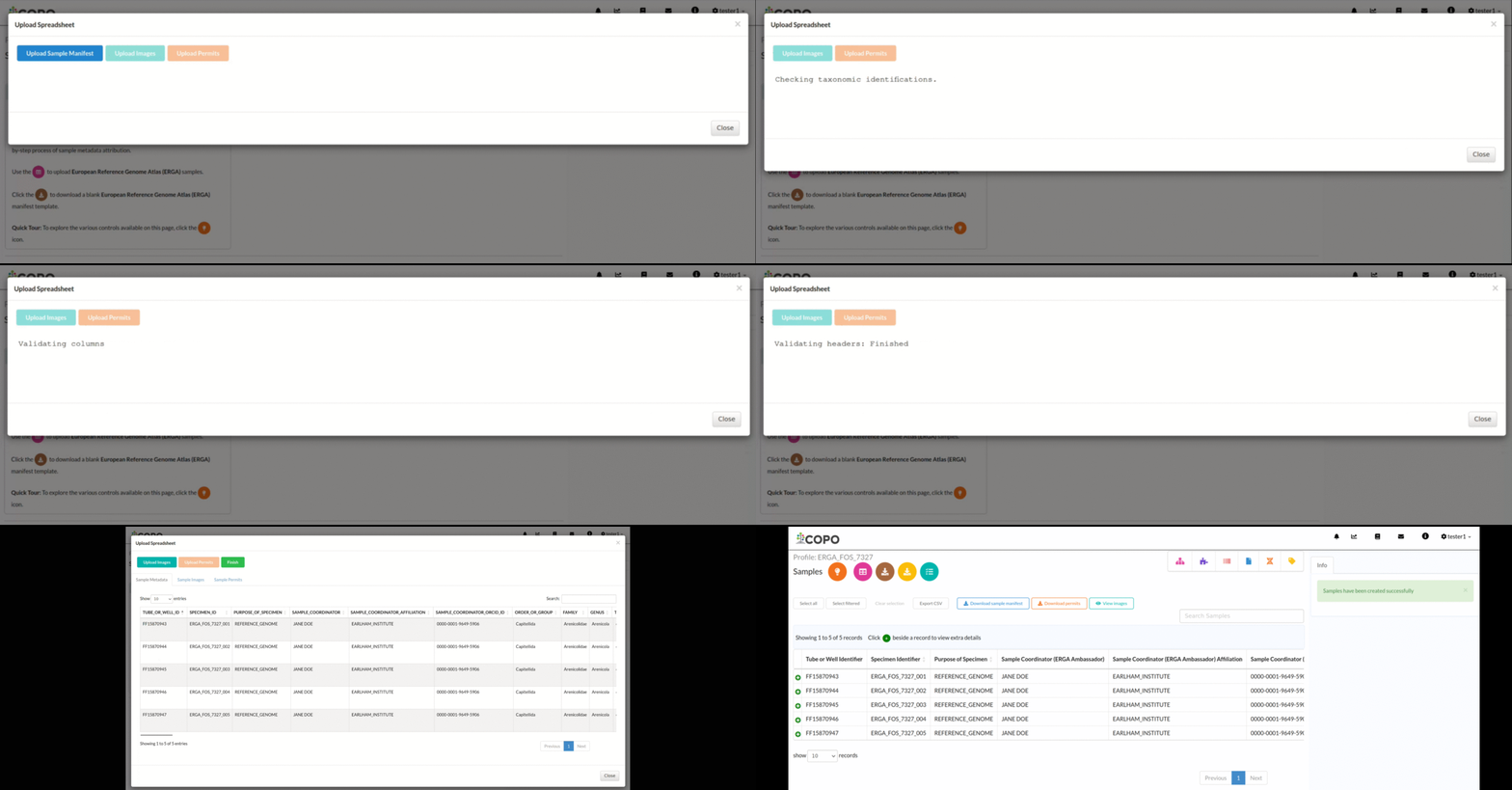
Submitting and validating samples
Accessing the Samples Page
Using the Components Button
Click the  component button in the Components
column as shown below:
component button in the Components
column as shown below:
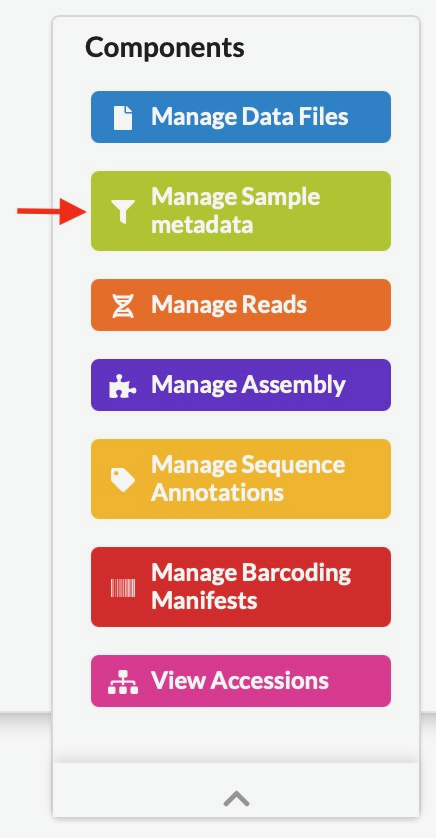
Samples component button (located under Tree of Life profiles)
Using the Components Icon Navigation Pane
If you are unsure what each icon represents, you can perform any of the following:
Hover over the icon in the component icon navigation pane to see a tooltip with the component’s name
Refer to the component button image above
Refer to the What are profile components? FAQ
Note
The navigation pane will not display the icon associated with the page that is currently being viewed.
If a component has subcomponents, a dropdown menu is shown when at least two items are available. However, if you are viewing a subcomponent’s page and only one item remains, that item is displayed directly in the navigation pane.
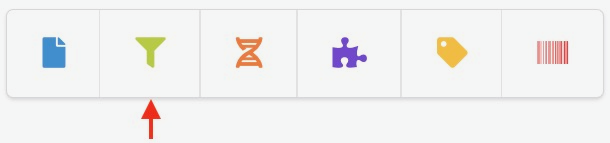
Samples component icon
Submit Samples
Note
-
By default, the profile type dropdown menu on the Work profiles page shows Biodata.
for access to other groups. See the Supported Projects section for available projects.
Samples cannot be deleted after they have been submitted.
-
Click the
 button to download a blank
manifest [2].
button to download a blank
manifest [2].A manifest is a spreadsheet file used to record metadata for submission.
-
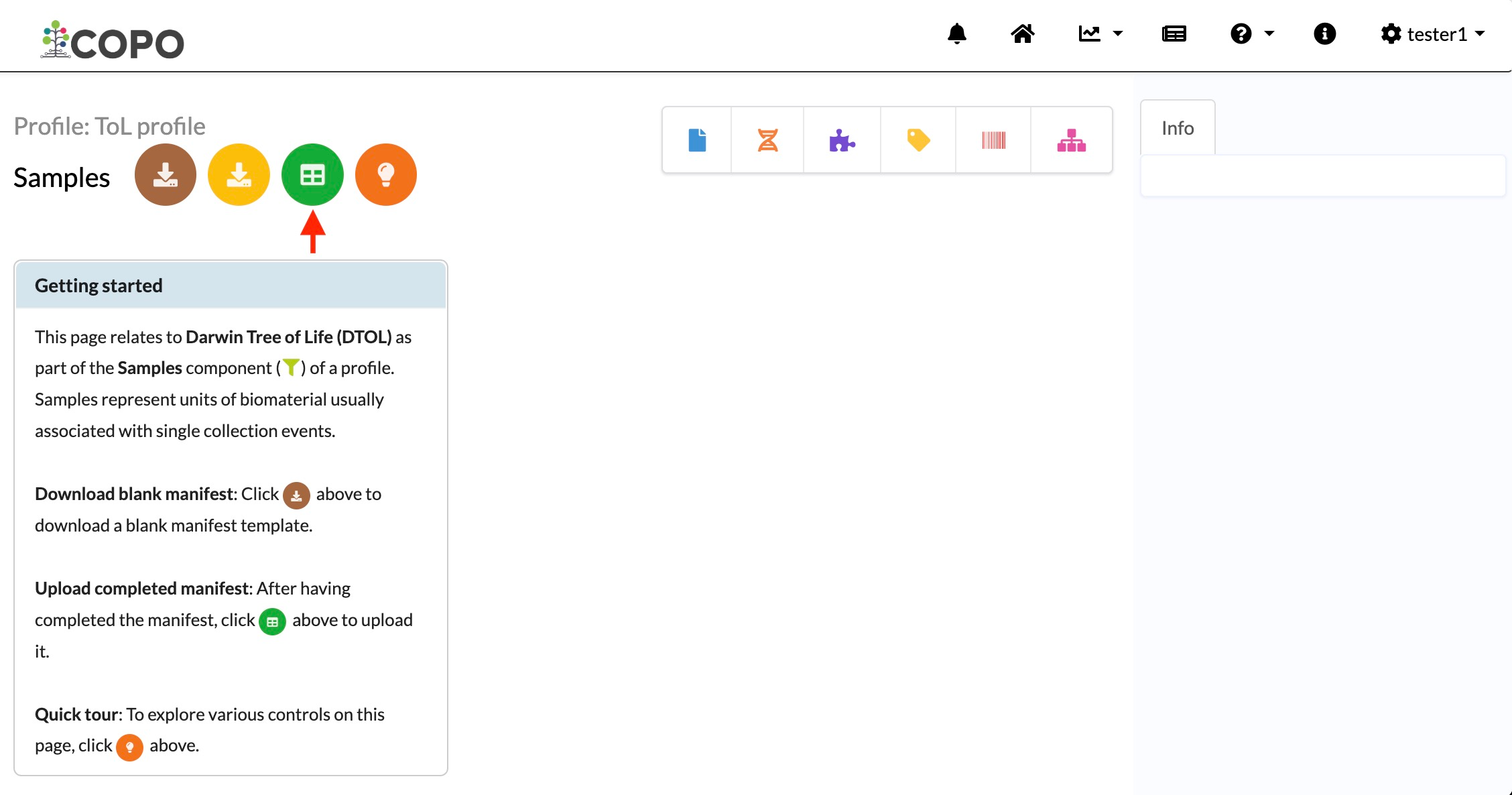
Fill in the downloaded manifest then, click
 button
to upload it from your local (computer) system.
button
to upload it from your local (computer) system.Note
The colour of the
button and sample name are
based on the type of profile that you are making a submission to. See
the Profile Types Legend section regarding the colour codes.

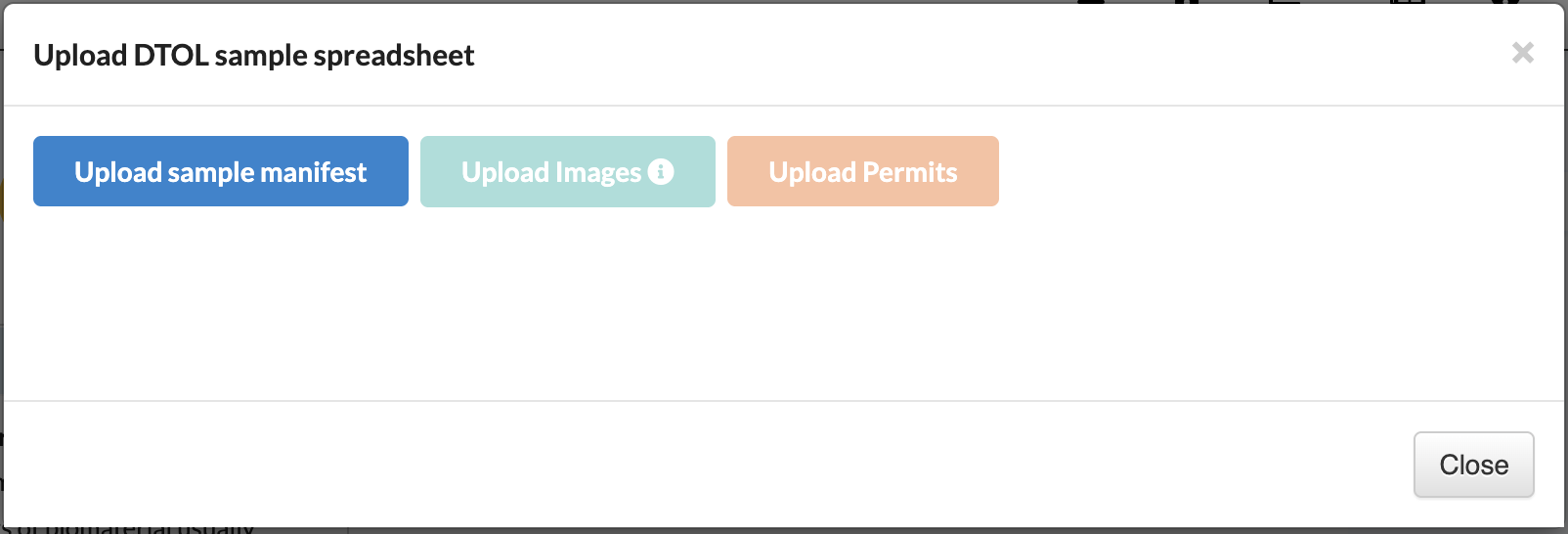
Click the highlighted button to add or update samples
-
Click the
 button in the dialogue displayed to
choose a file from your local system.
button in the dialogue displayed to
choose a file from your local system.
Upload sample spreadsheet dialogue
-
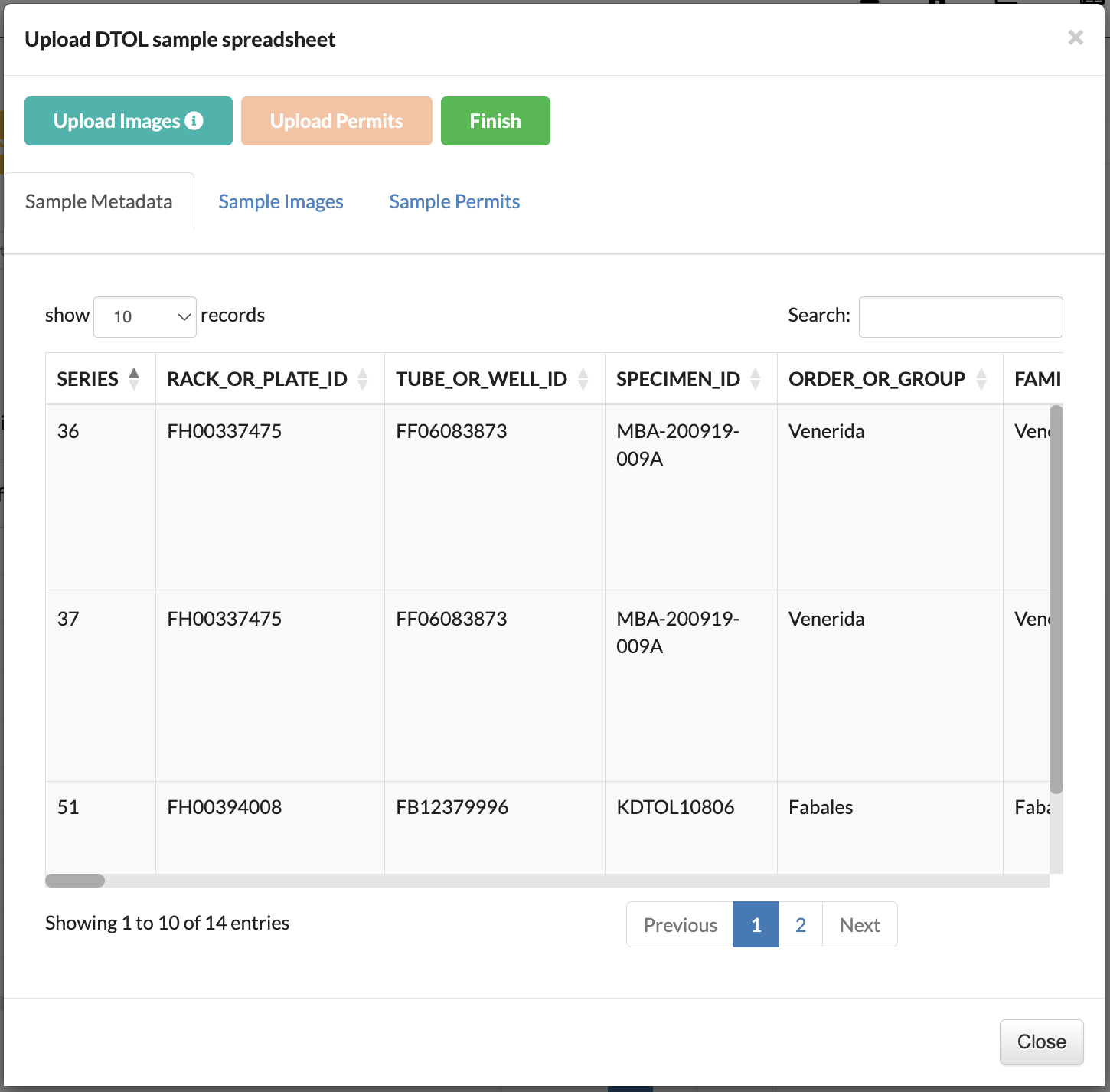
Upload sample images (if applicable). Refer to Uploading Sample Images section to learn more.
-
Upload sample permits (if applicable). Refer to Submitting Permits section to learn more.
-
The uploaded samples are shown in a preview before final submission. Click the
 button to finalise the upload.
Sample upload preview
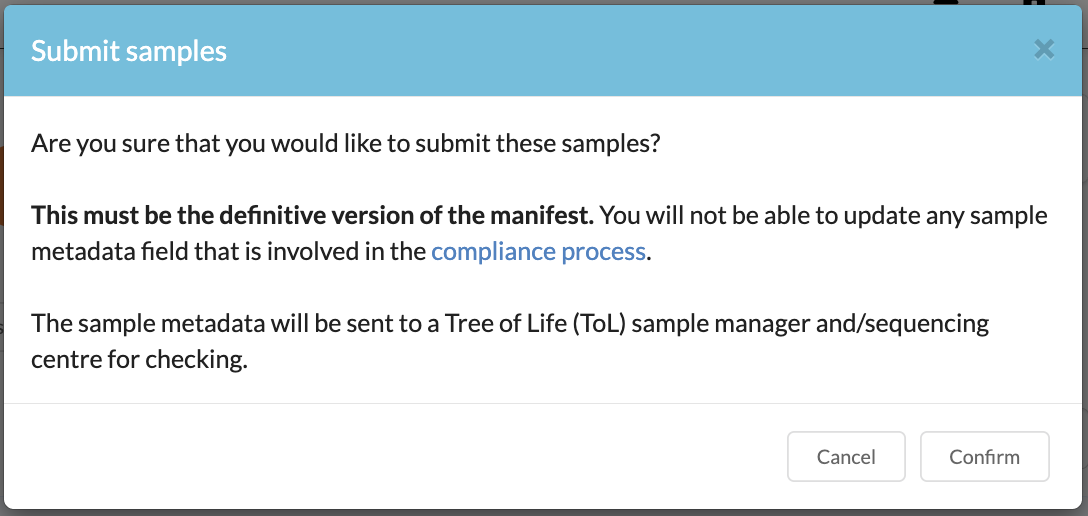
A confirmation dialogue appears (if applicable). Click Confirm to submit the samples.

Finalise sample submission
-
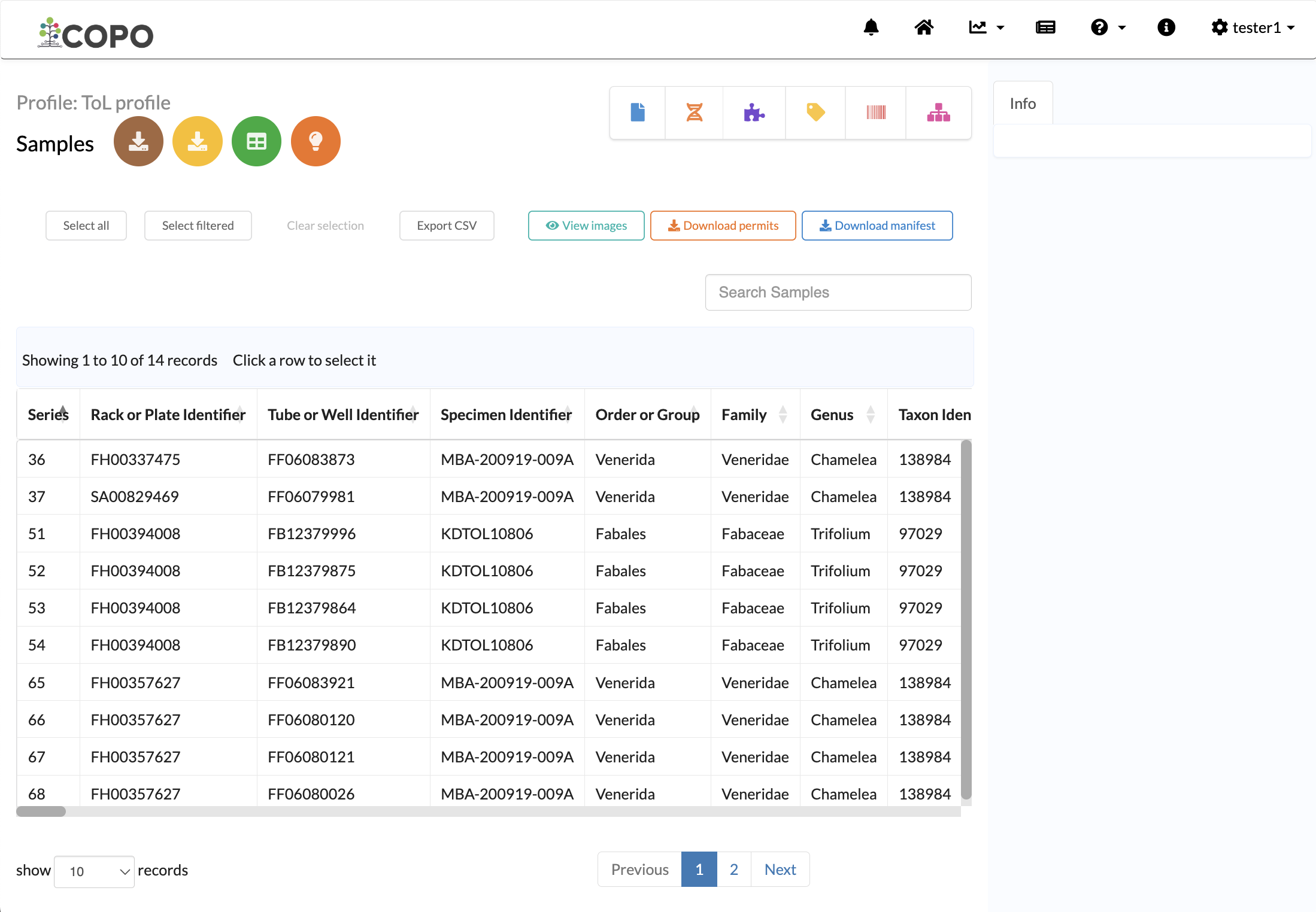
The new samples will be displayed on the Samples page after a successful validation.

Samples page showing the uploaded samples
View Submission Status
Sample managers are notified of new or updated submissions. They review the submission and either accept or reject it.
The submission status is indicated in the following columns:
Status - the status of the submission is displayed in this column. Possible values are pending, processing, accepted or rejected.
Approval Date - the date when the sample manager made a decision regarding the submission.
Error - if there are any errors with the submission, details will be displayed in this column.
View Accessions
Accessions are unique identifiers assigned to submissions after they have been successfully submitted to public repositories.
The accession columns are:
Biosample Accession - the primary identifier of the sample submission.
SRA Accession - the SRA [7] accession is the secondary identifier for the sample submission.
Submission Accession - the identifier for the submission of the sample metadata to the public repository. It cannot be used to access the sample metadata in the public repository but can be used to track the submission in COPO.
The value displayed in the columns below corresponds to the source or specimen of the submitted samples.
Sample Derived From
Sample Same As
Sample Symbiont Of
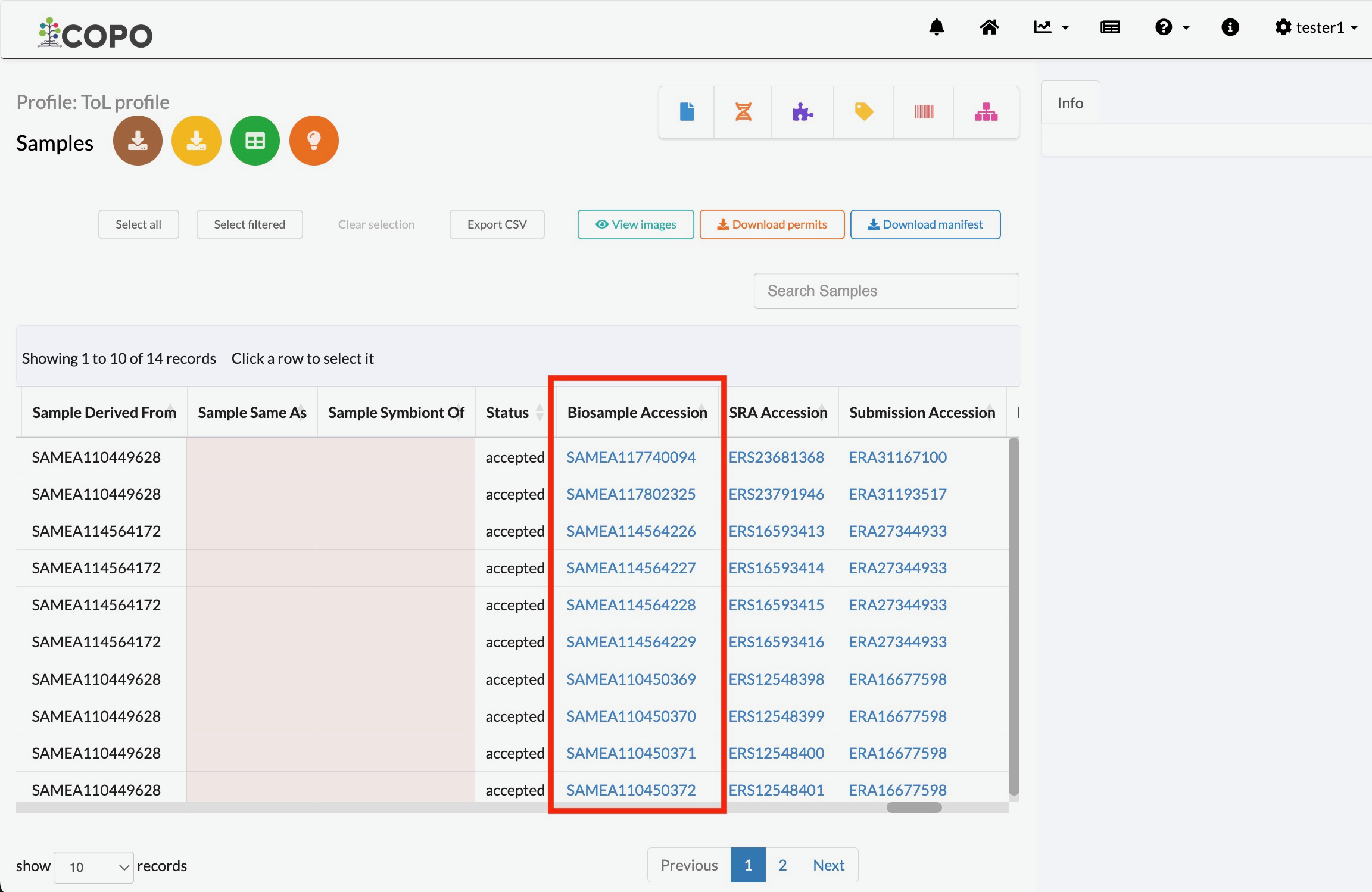
Columns displaying accession identifiers for submitted sample data