Sample managers
Tip
To read the entire answer to a FAQ,
click the arrow icon
( ) below any question to expand or collapse it.
Who can be assigned as a sample manager?
Click to view answer
Make a request to the indicating the type of profile group that you would like to be assigned as a sample manager.
The permission will be granted after the request has been approved.
Am I assigned as a sample manager?
Click to view answer
You can check if you are assigned as a sample manager by either of the following methods:
The
 button will be displayed on
the page.
button will be displayed on
the page.The Accept or Reject Samples page will be displayed once the button is clicked.
Alternatively, if you can navigate to the Accept or Reject Samples page with an Unauthorisation error page being displayed then, you are not a sample manager.
How do I search for a profile or sample on the Accept or Reject page?
Click to view answer
See Guidelines for Searching Profiles and Samples on the Accept or Reject Page section for guidelines on querying profiles and sample records on the Accept or Reject Samples page.
How do I accept or reject submitted samples?
Click to view answer
Note
See Accessing the Accept or Reject Samples page section for guidelines on accessing the Accept or Reject Samples page.
See Accepting or Rejecting Samples section for more information.
How can I download submitted sample manifests from providers or submitters?
Can I download user-uploaded permits?
Click to view answer
Yes, on the Accept or Reject Samples page, permits can be downloaded by
selecting the desired sample record(s) then, clicking the
 button on the page.
See Downloading permits section for more information.
How can I view user-uploaded images?
Click to view answer
Yes, on the Accept or Reject Samples page, images can be viewed by
selecting the desired sample record(s) then, clicking the
 button on the page.
See Viewing images section for more information.
How can I view or accept samples from multiple sample manager manifest groups?
Click to view answer
Note
The manifest dropdown menu will only be displayed on the Accept or Reject samples page if you as a sample manager, belongs to more than one sample manager manifest group.
If the dtol sample manager group dropdown menu option is selected, both Aquatic Symbiosis Genomics (ASG) profiles and Darwin Tree of Life (DToL) profiles will be displayed in the All profiles tab and/or Profiles for My Sequencing Centre the Accept or Reject samples page will be displayed (if any exists).
Choose desired sample manager group from the manifest group dropdown menu.
-
Click the
button to accept or
reject samples.
Accept or Reject samples: Email address prompt shown when a user logs into COPO for the first time
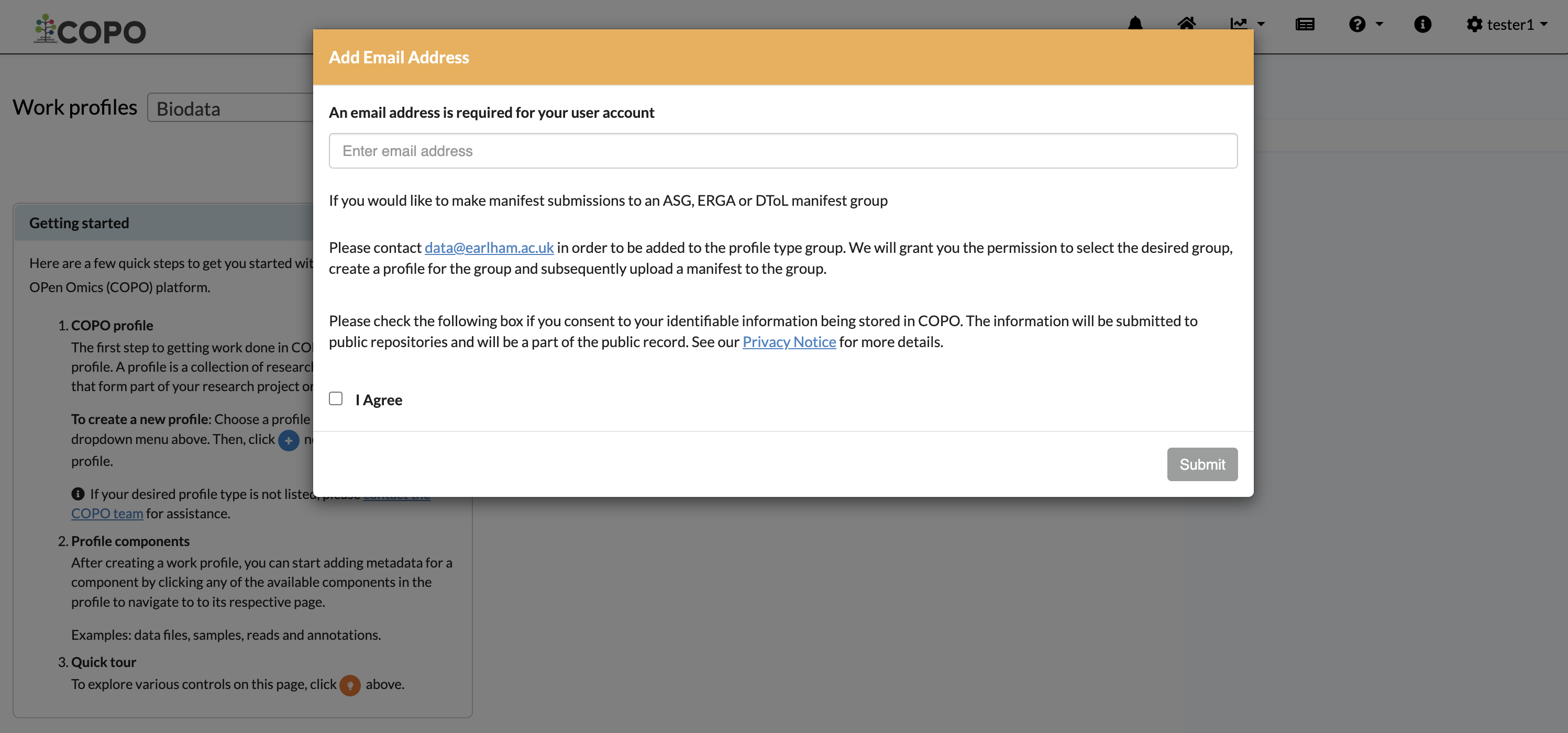
See Viewing images section for more information.
How can I check if sample records are awaiting review by another manager?
Click to view answer
If samples require more than one sample manager to accept or reject them, the samples will be displayed in the Pending Samples tab until all sample managers have accepted them. Once all sample managers have accepted the samples, the samples will be displayed in the Accepted Samples tab.
As shown in the image below, sample records that are awaiting another acceptance will be highlighted yellow or amber and the date when the records have been accepted will be displayed in the Approval Date column in the samples data table.
Refer to the Associated TOL (Tree of life) Project column to view the associated project(s) that the sample record belongs to. See the image below for an illustration.
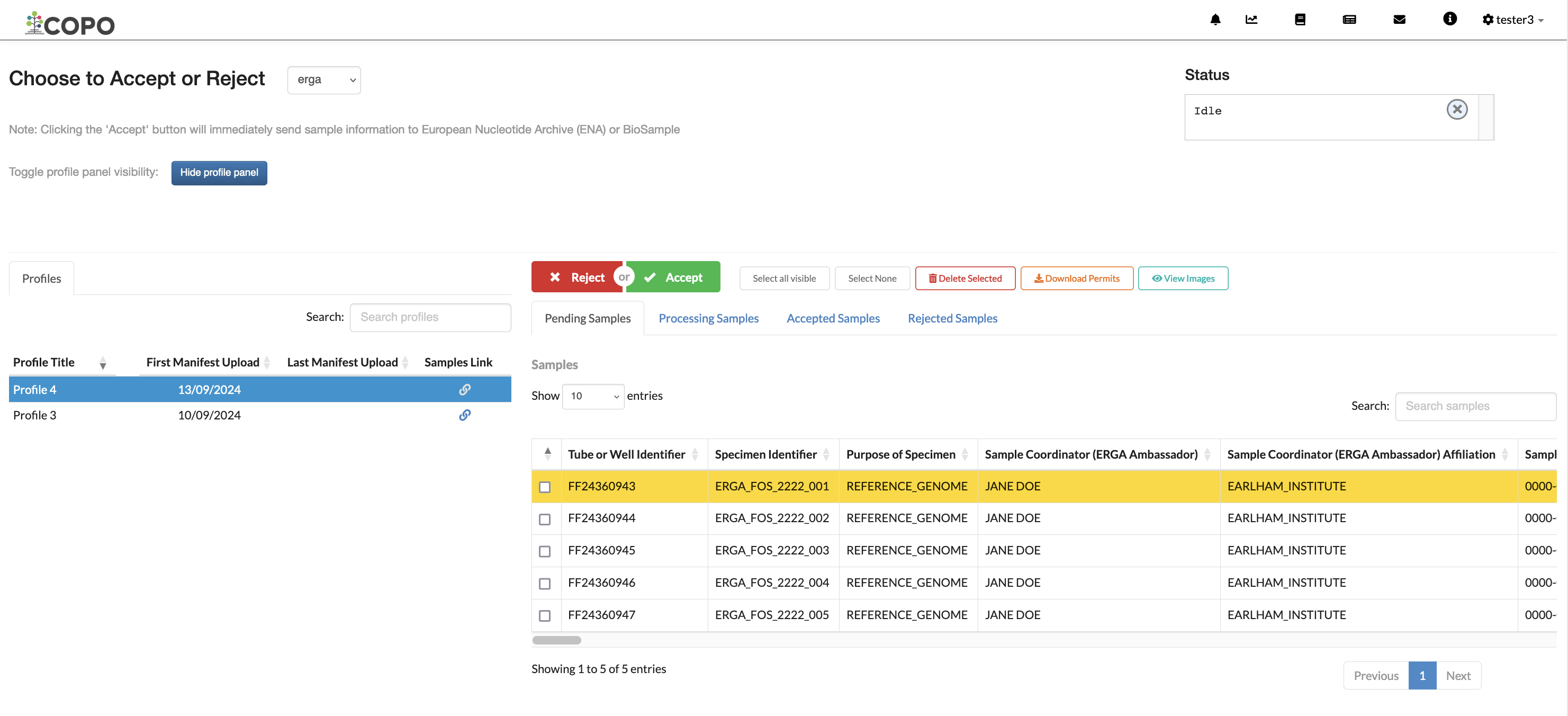
Sample record highlighted in yellow awaiting another acceptance
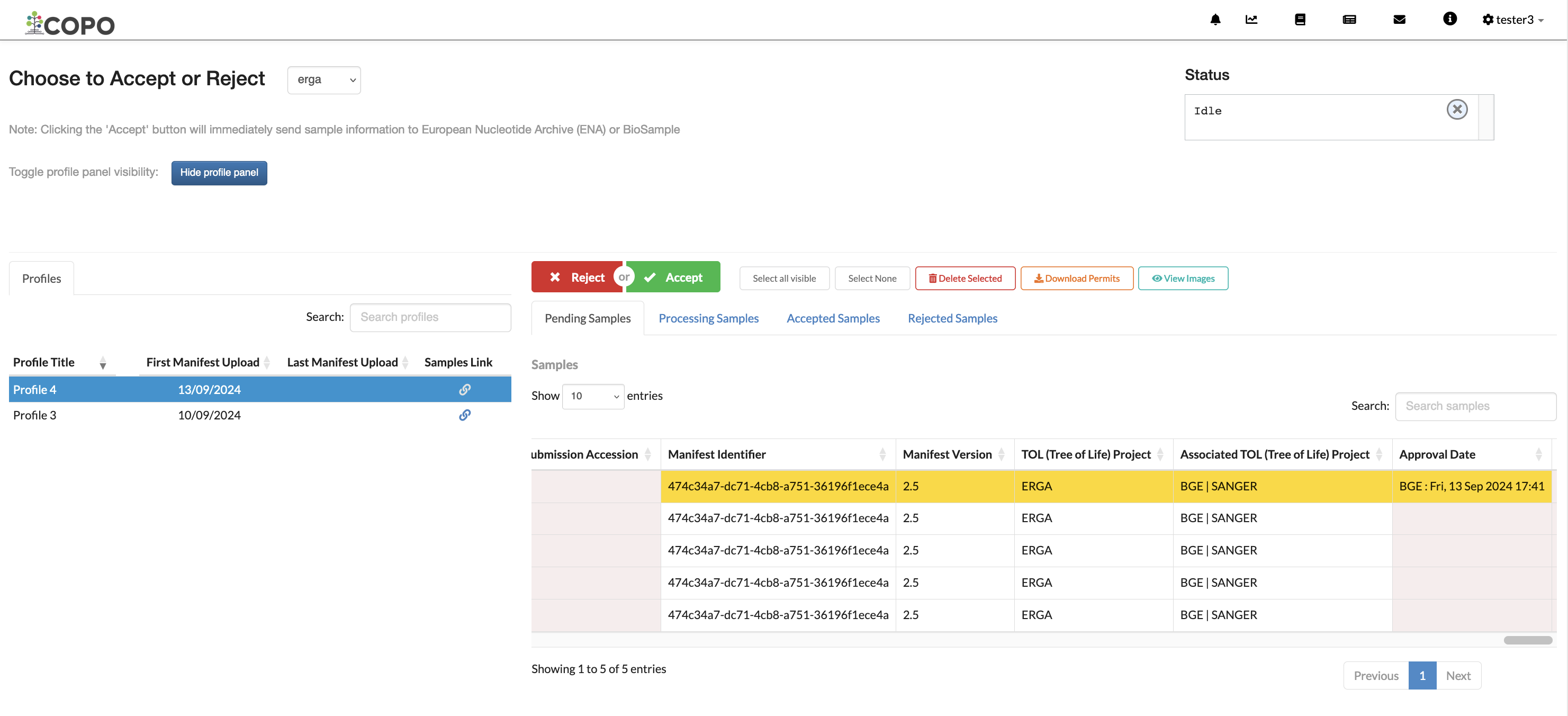
Approval date displayed in the ‘Approval Date’ column of the samples data table
In the example above, the sample record is associated with both BGE and SANGER (Sanger Institute) (associated) project types. A BGE sample manager has accepted the sample record, which is reflected in the Approval Date column in the data table. The record is highlighted in yellow to indicate that it is still awaiting acceptance from another sample manager.
Hint
The Approval Date column displays the date when the sample record was accepted by the sample manager as well as the associated project that the sample manager belongs to.
The Associated TOL (Tree of life) Project column displays the associated project that the sample record belongs to.
After the sample record has been accepted by all sample managers, the sample record will be displayed in the Accepted Samples tab as shown in the image below.
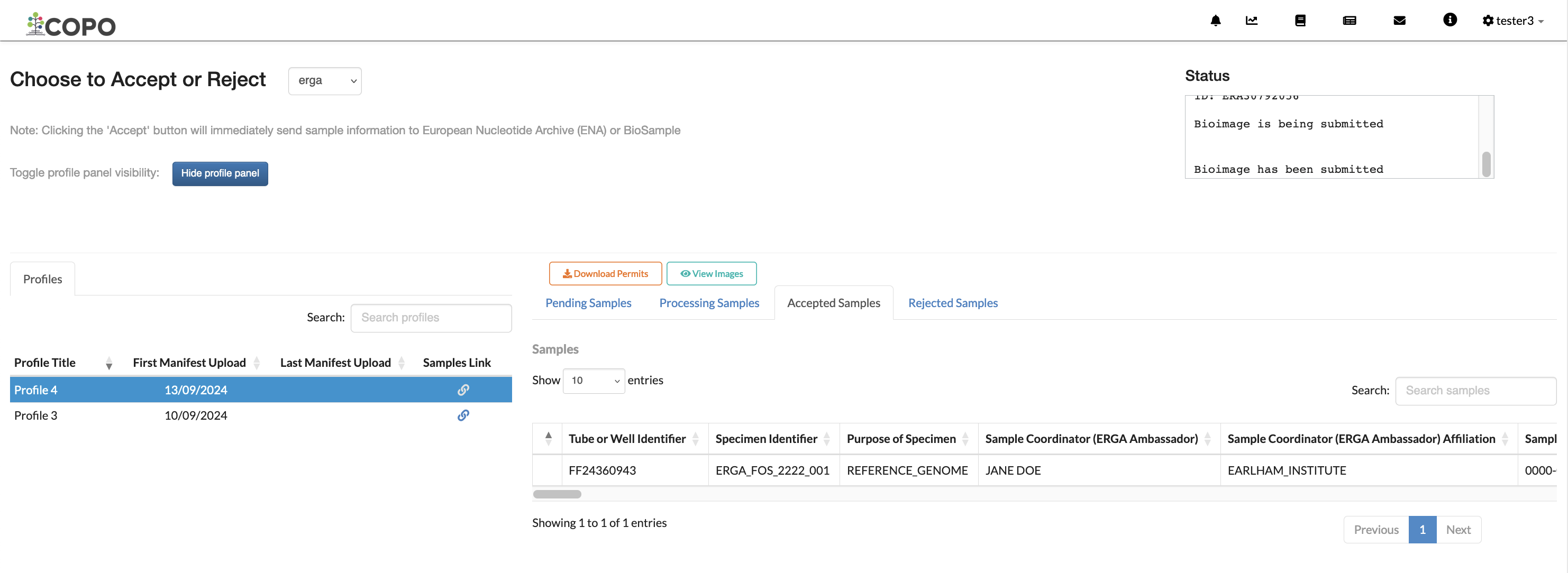
Sample record after all sample managers have accepted it
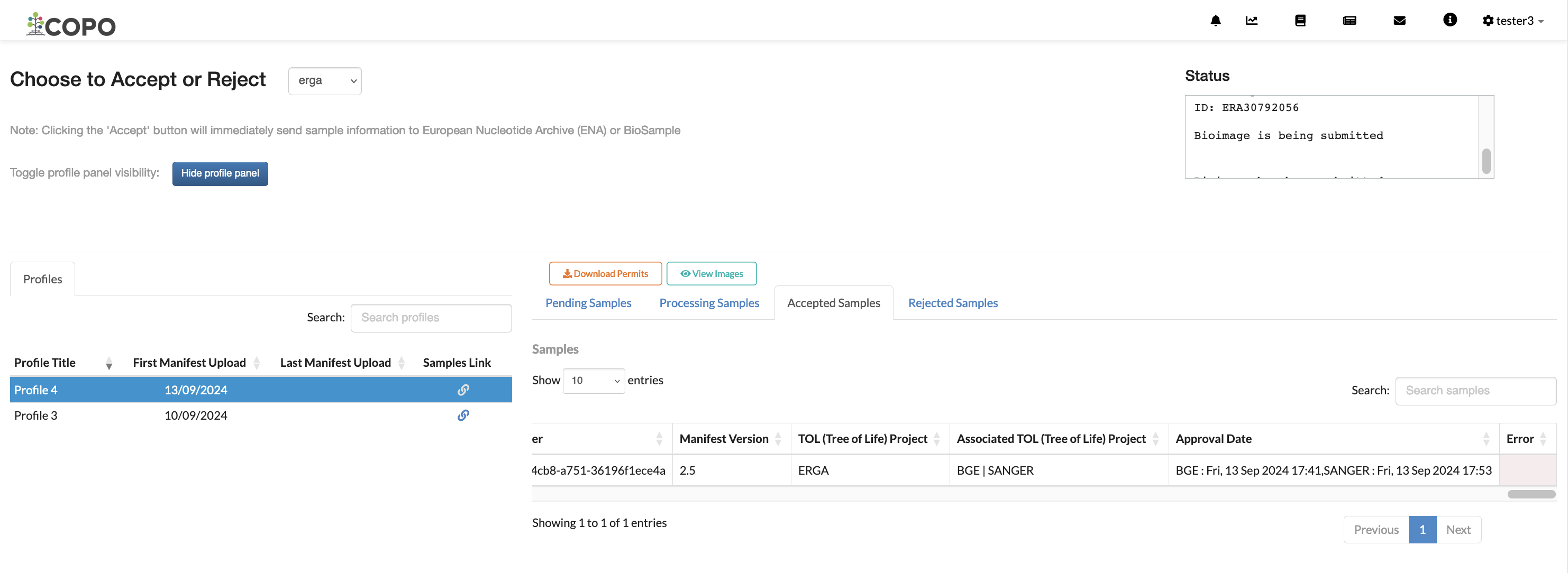
Approval date updated in the ‘Approval Date’ column of the samples data table
In the example above, the sample record is associated with two projects: BGE and SANGER (Sanger Institute), as shown in the Associated TOL (Tree of Life) Project column. The sample managers assigned to both associated project types have approved the sample record and the Approval Date column has been updated in the samples data table.
How can a sample manager check the status of accepted or rejected samples?
Click to view answer
Option 1: Accepted samples can be viewed in the Accepted Samples tab while rejected samples can be found in the Rejected Samples tab on the Accept or Reject Samples page.
Option 2: The Status column in the samples data table will display the status of the sample record.
Option 3: The Error column in the samples data table will display an error message if the sample record has been rejected or if there are any errors associated with the sample record.
Option 4: The Status log will display a chronological list of the status of the sample record as shown in the images below. It is located on the right of the Accept or Reject Samples page below the top navigation bar.
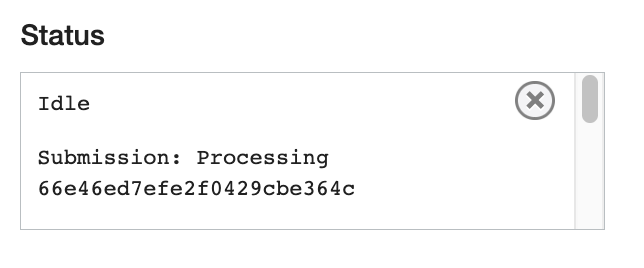
Sample record status log collapsed
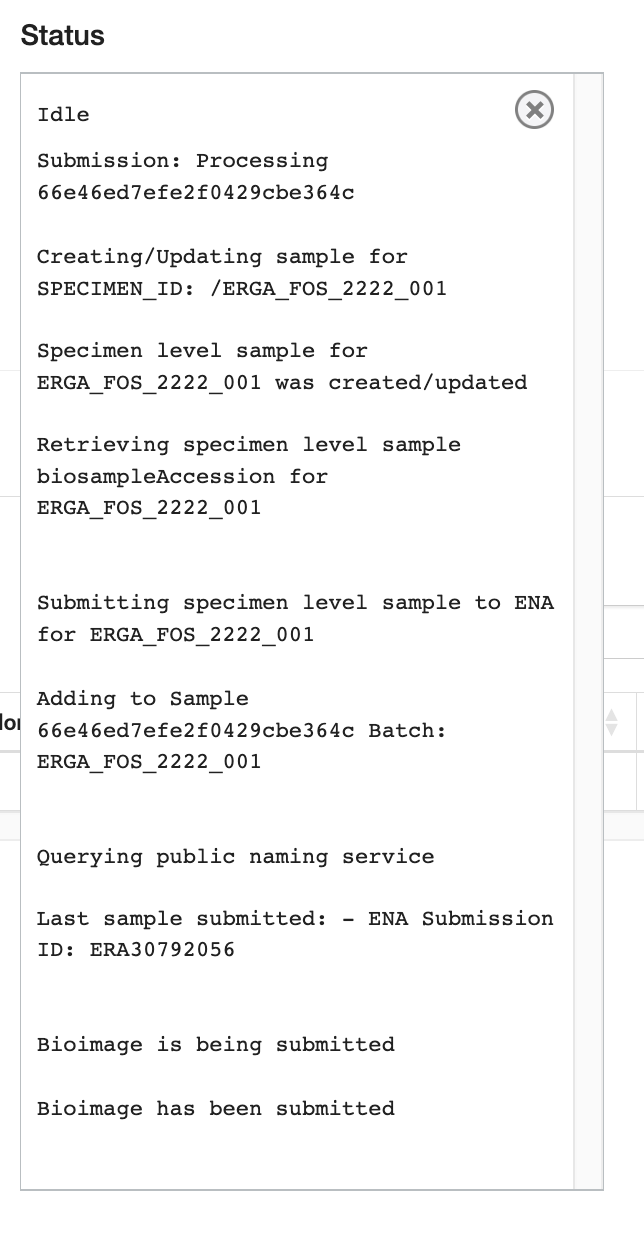
Sample record status log expanded on hover
Hint
If you hover over the Status log, it will expand to display more information about the status of the sample record.
How to view sample details clearer on the Accept or Reject Samples page?
Click to view answer
Click the  button to toggle the profile panel
visibility on the Accept or Reject Samples page to either hide the
profile panel and view more sample records or show the profile panel to
view more profiles.
button to toggle the profile panel
visibility on the Accept or Reject Samples page to either hide the
profile panel and view more sample records or show the profile panel to
view more profiles.