Errors & Solutions
Tip
To read the entire answer to a FAQ,
click the arrow icon ( ) below any question to
expand or collapse it.
) below any question to
expand or collapse it.
Invalid date in column
Click to view answer
Hint
As regards to date formats, YYYY represents the four-digit year,
MM is the two-digit month and DD
is the two-digit day.
This error can pertain to any date column such as collection date or DATE_OF_COLLECTION depending on the type of manifest that you are trying to upload.
Two main reasons why this error occurs are:
#. Invalid date format: The date provided does not match a valid date format.
Depending on the column, valid date formats may include options such
as
YYYY-MM-DD,YYYY-MM,YYYY,NOT_COLLECTEDorNOT_PROVIDED. The error message shown will display the valid options for the specific column.A date-time value is provided but with a space separator (e.g.
2025-05-01 14:30:00) instead of a a date-time format with a T separator (e.g.2025-05-01T14:30:00).
-
Valid date only value but time being added: A valid date is provided but the spreadsheet internally and automatically converts date only values to date-time values where the time component is set to
00:00:00.This time component is usually not visible in the cell. An example of this is
2025-05-01 00:00:00but only2025-05-01is inputted and visible in the cell.Refer to the Solution option #2 below to resolve this issue.

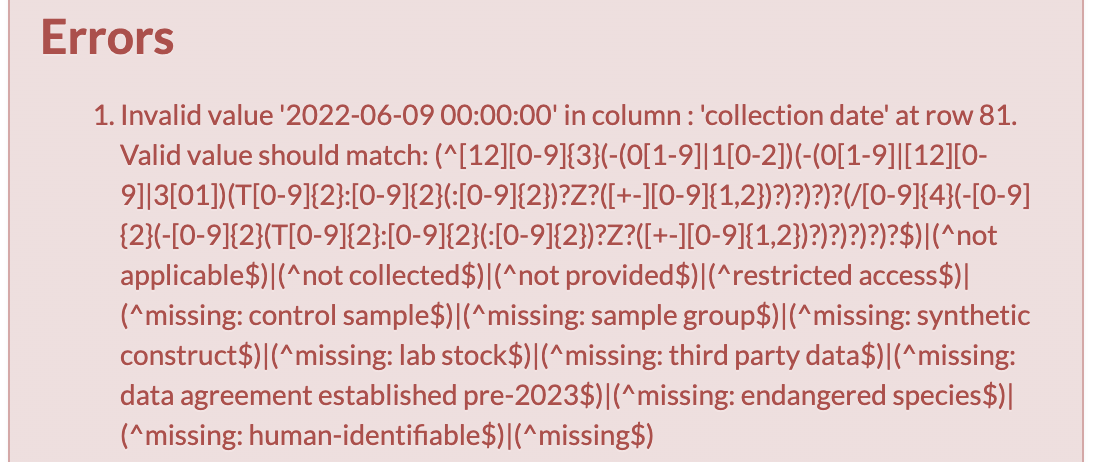
Example of invalid date format error message for collection date column

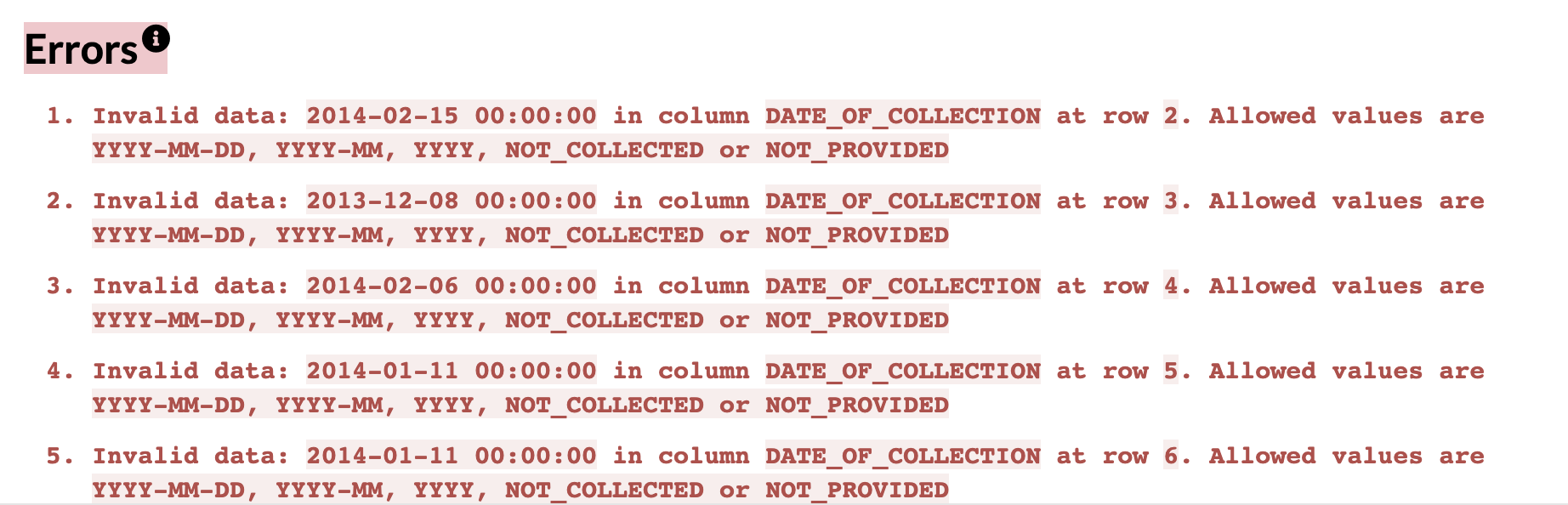
Example of invalid date error message for DATE_OF_COLLECTION column
Solutions
Option 1: Re-format the date column in the spreadsheet
Select the entire column with the date values to be corrected.
Right-click then, select Format Cells…
Select Custom
In the Type field, enter
yyyy-mm-ddClick OK
Save the spreadsheet and reupload the file.
If the error persists, try the alternative solution below.
OR
Option 2: Convert date cell to text using a formula in a temporary column
In a new column, enter
=TEXT(A1,"yyyy-mm-dd")(replaceA1with the cell you want to convert).Copy the formula results.
Use Paste Values or Paste Special –> Values to overwrite the original column with the formatted text.
Delete the temporary column.
Save the spreadsheet and reupload the file.
Invalid column ‘<column-name>’
Click to view answer
This error occurs when a column header in the uploaded manifest does not match any of the expected column headers for the selected checklist.
This error usually occurs when the incorrect checklist is selected or if there is a typo in the
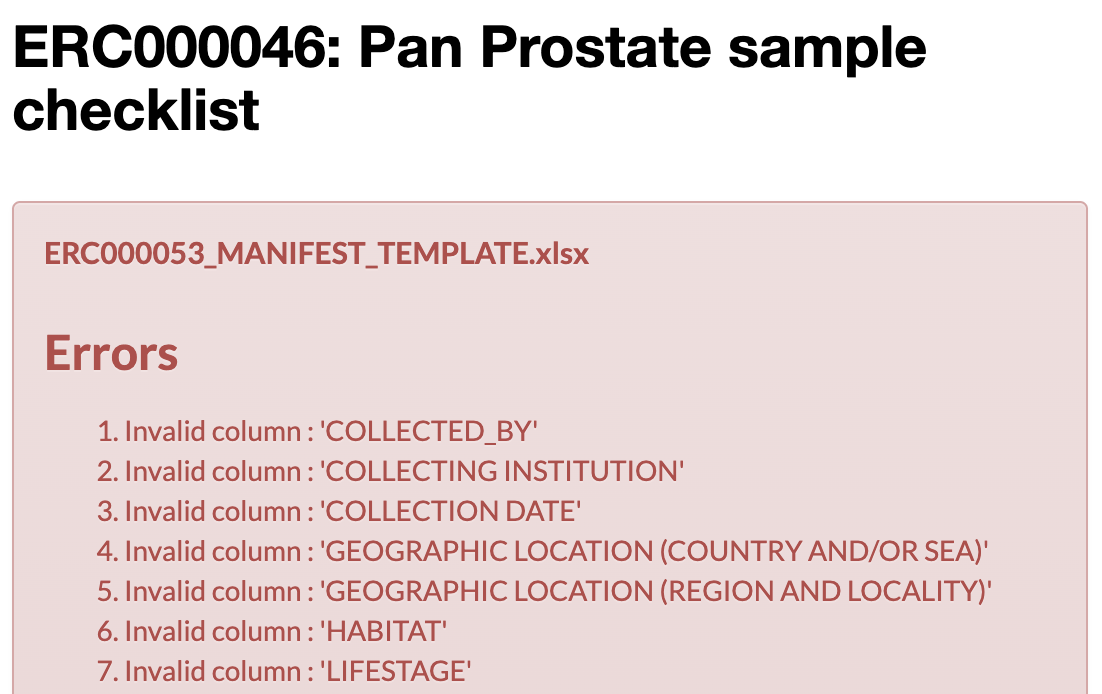
Example of incorrect manifest uploaded error message
Solutions
Verify that the correct checklist is selected from the dropdown menu then, re-upload a manifest that matches the selected checklist.
Alternatively, verify that the column header is spelt correctly and matches one of the expected column headers for the selected checklist. Refer to the Manifest Checklists section for guidance.