Accessing the Accessions Page
Create a profile [1] following the steps in Choosing a Profile. Then, access the Accessions [2] page via any of the following methods:
Using the Components Button
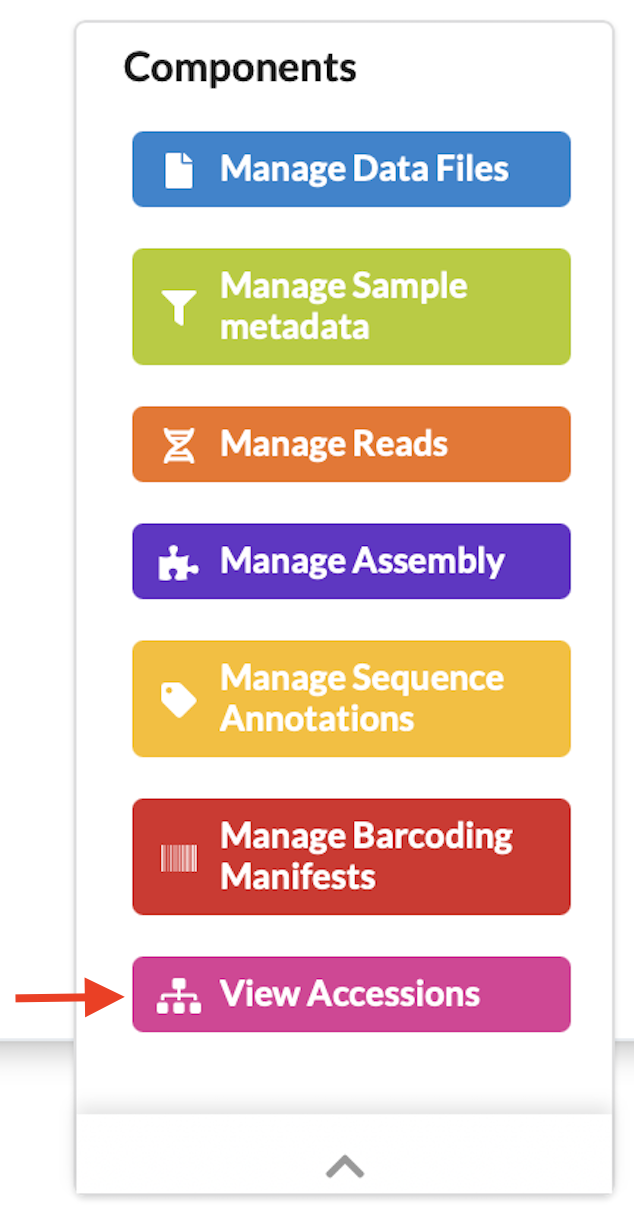
Click the  component button in the Components
[3] column as shown below:
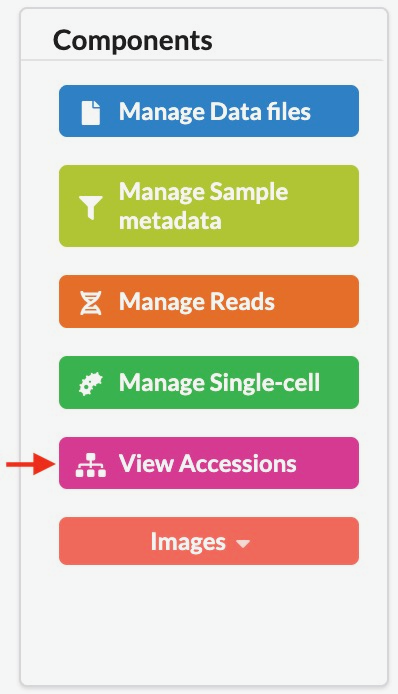
component button in the Components
[3] column as shown below:
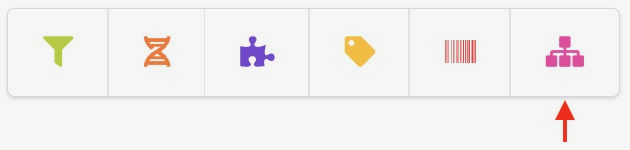
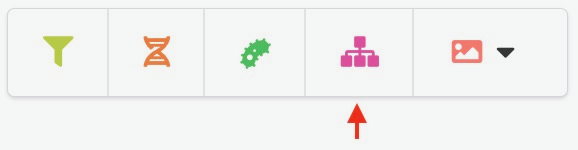
Using the Components Icon Navigation Pane
If you are unsure what each icon represents, you can perform any of the following:
Hover over the icon in the component icon navigation pane to see a tooltip with the component’s name
Refer to the component button image above
Refer to the What are profile components? FAQ
Note
The navigation pane will not display the icon associated with the page that is currently being viewed.
If a component has subcomponents, a dropdown menu is shown when at least two items are available. However, if you are viewing a subcomponent’s page and only one item remains, that item is displayed directly in the navigation pane.
Footnotes